Blogs
|
Digital Citizenship Week is October 19-25th. Digital Citizenship Week is all about teaching kids how to think critically, be safe, and make smart and responsible decisions when using digital media. Find out what Digital Citizenship is from Digizen and how you can help students become more responsible and proactive user of online technologies.Many other organizations like Digizen have made it easy for teachers, and parents to teach these concepts to students in very practical ways. Common Sense Media has developed some fantastic resources, including an interactive scope and sequence, eBooks , engaging videos, and a Digital Passport game, that is geared towards students as young as pre-school, all the way up through high school. They have teamed with Flocabulary, the creator of thousands of educational hip-hop videos, to create Oversharing, Think Before You Post, this animated music video, raps about the dangers of sharing too much information online, and emphasizes digital footprints. Tweens, teens, and adults can laugh and learn about the ups and downs of communicating and connecting in the digital world, and print out the lyrics and sing along.Emodo has partnered with Common Sense Media and has created a new resource for educators, the "Digital Citizenship Starter Kit," which includes a series of activities and lessons designed to introduce digital citizenship concepts right in Edmodo. All lessons are based on Common Sense Media’s free K-12 Digital Literacy and Citizenship curriculum.Brainpop has created Digital Spotlight Lesson Plans that highlight topics from blogging, internet surfing, social networking, and cyberbullying. Students can create a game, and watch internet safety videos.Google (who owns Youtube) has launched 10 interactive Digital Citizenship Lessons for secondary students (ages 13-17), geared at lessons to educate students on Youtube's policies, tips for being a safer online citizen, and more.Below is a list of lessons, and the recommended flow for delivery. Lessons are designed to fit within 50 minute classes, but can be adapted to fit your schedule. Or you can download the Full Teacher's Guide or the Full Set of Slides in PDF.Also take a look at iKeepsafe, an organization who has teamed with Google to create lessons designed to educate families, and educators on how to stay safe online, and become responsible citizens. The curriculum is interactive, discussion filled, and allows for students to participate in hands-on, and scenario activities. The resources include three lessons with downloadable PDF booklets, presentations, and animated videos. Media Smarts was developed to share digital and media literacy basics, educate adults on ways youth become engaged with different media tools, and the issues they encounter. They have created several resources that target Digital and Media issues through lessons, Educational Games, and e-tutorials.Take a look at these specialized lessons for students.Do the Right Thing - Tip Sheet, Behaving Ethically Online: Ethics and Empathy, Raising Ethical Kids For a Networked World, Co-Co's AdverSmarts: An Interactive Unit on Food Marketing on the WebCable Impacts brings you InCtrl, a series of free standards-based lessons, originally developed by Cable in the Classroom, that teach key digital citizenship concepts. These lessons, for students in grades 4-8, are designed to engage students through inquiry-based activities, and collaborative and creative opportunities. Teachers can browse lessons by topic, and grade-level.The Teaching Channel has created a Digital Citizens playlist of four videos that teach students about their Digital Trail , being a Super Digital Citizen, and Email Etiquette.NetSmartz offers free, multimedia Internet safety presentations tailored for specific audiences - parents and communities, tweens, teens, and younger children. Download any of these to share with your community, or watch the presentation for parents and communities online now.
Patricia J. Brown
.
Blog
.
<span class='date ' tip=''><i class='icon-time'></i> Aug 05, 2015 03:43am</span>
|
|
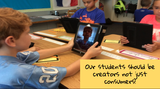
Collaboration is important at any age. We should empower our students to be explorers, and engage and be a part of their own learning. A 4th grade classroom paired with a kindergarten class to have buddy time, get to know each other, and learn a new tool. BUDDY TIME WITH EDUCREATIONS
Patricia J. Brown
.
Blog
.
<span class='date ' tip=''><i class='icon-time'></i> Aug 05, 2015 03:43am</span>
|
|
The Flipped Classroom is a fairly new strategy that flips traditional classroom teaching to offer a more student centered approach. A flipped classroom is a teaching strategy that uses technology to record a teacher's lesson, and have students watch the lecture at home as opposed to the teacher lecturing in class. A benefit to this is students can watch the lectures at their own pace, and as many times as needed. A flipped classroom allows more time for activities during class outside of lecturing, such as collaborating learning projects, and assessments. By completing the "homework" in the classroom this allows for more teacher and student interaction. A flipped classroom is more student-centered, versus a traditional classroom being more teacher-centered.This video breaks down more benefits, and goes into more details of the difference between a flipped and a traditional classroom.Here are some other reasons why you might want to consider flipping your classroomFlipped Classrooms allows for a student to never again miss a lesson. Even if they get pulled out for a few minutes, are at home sick, they can still access the lecture information and stay on track.Flipped Classrooms allow for a teacher to be there, even when they are not. If you know you are going to be out sick, or out of the building for a period of time. You can record your lessons ahead of time, and have them available for your students tot view. Flipped classrooms can cut down the lesson time tremendously. Think about all of the interruption in a classroom setting due to behavior disruptions, announcements, or other things out of our control. With a recorded lesson, students can watch an uninterrupted lesson as many times as they need to. Flipped Classrooms allow you to break down your classroom walls, and expand learning outside of the classroom. Students don't have to stop at just watching your lessons, they can view information from other teachers and experts to gain new perspectives.Getting started with flipping your classroom is fairly easy. You can probably make a great video with the equipment you already have.The minimum required equipment:A recording device (webcam, camera, or screen-casting software)Access to editing software (iMovie, windows movie maker, or an online tool)Computer, laptop, or tablet.An online presence to post videosFinding the right technology that works at your comfort level is very important to start. As you get better flipping your classroom, you can look for additional technology tools that help supplement your technology skills.There are a few easy online tools you can use to help you get started flipping your classroom. Even if you aren't quite gung-ho with a complete flip, consider using a modified format of this strategy when you are out sick, or at conferences.Starting with my absolute favorite tool...EDpuzzle is an incredible-easy-to-use video platform that helps teachers save time, boost classroom engagement and improve student learning through video lessons. EDpuzzle also collects data as students watch and interact with the video. Best of all, it’s completely free! You can make any video yours. Take video from Youtube, Khan Academy, Learn Zillion, TeacherTube, etc... and crop the video to use only what you need for your lesson, record your voice on top to explain, add clarifications, or a warm introduction. Add quizzes along the way, to check for student understanding. Track how your students learn, see who didn't watch the video with hassle- free student reports. Allow your students to create their own video lessons, to create a deeper learning experience. Students can view the videos on the website, or the app. You can embed the lesson on your website.Present.Me- A free online website, Allows you to upload content (PDF, PowerPoint, etc.) to an online platform, and record video of you presenting the information. The viewer sees a split screen, with your presentation on one side, and a video recording on the other side. Tellagami a mobile app that lets you create and share a quick presentations. Create easy tutorials, or animated anticipatory sets to introduce a unit or lesson animated Gami video. Mash your Gami with iMovie and embed quizzes, and other special features.PowToonA FREE tool with super cool graphics. Create animated presentations and videos as easy as PowerPoint, but way cooler! Use it to teach difficult concepts in a unique and innovative way. Check out some examples belowVideolicious- This FREE tool is very user friendly and great for taking pictures to tell stories. This is available in the APP for version as well as a website.Check out these great examplesKnovio similiar to Present.Me - Helps you share you your presentations online. You upload your presentation slides, and record a video of yourself navigating through the lecture.Another tool to consider is screencast-o-matic, or Quicktime Player. These tools allow you to record what's on your computer screen.Your flipped lessons can be kept from year to year, and easily tweaked to customize your needs. Even if your students don't have access to the internet at home, students can save the videos on a flash drive at school, and the teacher can put the new video on each day. If they don't have a computer, you could allow them spend the first few minutes in class viewing the videos, or allowing time before or after school. Also, looking at grant opportunities to bring technology in your classroom is always a great option. Flipping your classroom appeals to students in this digital age. Many of our students have more access to technology then ever before. Take this into consideration, a child as young as 5 years old., is currently utilizing the worst piece of technology they will probably see in their lifetime. Our students are growing up in a world where technology is always changing and evolving, with the intent to constantly improve what we already have. Let's embrace it, and use it to engage and teach our students.Take a look at some flip classroom video examplesFlipped Classrom Math Example (1st Grade) Making Change Math Lesson (3rd Grade) Jamestown to the Civil War (American History)
Patricia J. Brown
.
Blog
.
<span class='date ' tip=''><i class='icon-time'></i> Aug 05, 2015 03:43am</span>
|
|
I’ll be the first to admit it: when I first started using Twitter 3 years ago, I used it purely as a social outlet. I "connected" with my favorite celebrities, chatted with a few of my friends and poked fun at the funny trending hashtags. But after spending quite a bit of time using Twitter personally, I soon discovered the value in using it to build a professional learning network. I have participated in numerous hours of in-person formal professional development, graduate coursework and workshops, but I can honestly say that I have learned and connected more from a few hours on Twitter right from the comfort of my own home.Think of Twitter as a "chat room" where you are having a conversation with like-minded people sharing their ideas and great resources. Imagine a room full of people who all have something to share. One person stands up and says "Hey, I found this great article on differentiation." Another person says, "I found a great resource for third grade students struggling with reading." Another responds, "Please share, I have been looking for strategies to help my students with reading." The beauty of Twitter is that these educators can communicate and share easily without being friends, or in the same room, or even the same country.Twitter does not have to be overwhelming, or "one more thing to do" that you don’t get around to. With a few simple and easy tips, you can quickly become a Twitter expert and maximize its power.Look Before You TweetTake a look at a few basic Twitter tutorials, whether video, audio, or text. A simple Google search for "Twitter tutorials" will link you to helpful websites and articles.Also, take the time to make a profile before you start actively participating in the Twitter community. The first step is to upload a picture. (The infamous default egg picture screams newbie, or I'm just not that into Twitter.) Add a description of who you are, or what your purpose is on Twitter. This is extremely helpful when you are looking for followers, since reading profile descriptions is a great way to weed through potential Twitter friends.After you understand the basics and setup your Twitter account, start following at least 15-20 tweeters. Not sure who to follow? Look for educators who blog or have websites, and make sure you ask people you already know on Twitter. You can also think about a keynote speaker you enjoyed recently, or simply look for educational organizations and publications. Unlike Facebook, Twitter allows you to have one-way relationships, so you can follow someone on Twitter, but they don't have to follow you back.For the next week, don’t Tweet, just watch. Spend a few minutes each day just scrolling through your timeline, and reading what others are posting. As you watch and read, look at who they are following and what they are talking about. You want to follow and connect with people who provide valuable content and information, so it’s okay to unfollow people who you don’t find helpful. Quality in the Twitter world is way more powerful and important than quantity, so as you scroll your timeline you want it to be a valuable experience, and not an extra place to store useless information. As you discover great Tweeters, they’ll lead you to others, as you expand and create a high-quality network.Get EngagedAfter you have spent a little time looking and not Tweeting, decide how you would like to contribute so that you are not just a consumer. Passively using Twitter can be boring and ineffective: Twitter is so much more valuable when it’s engaging and interactive.You could start by sharing an interesting article or blog, or even some of your students’ projects. You might even choose to have your students Tweet from a class account. Try connecting with another classroom to participate in a Mystery Skype challenge or Google Hangout, or become ePals. Or maybe you’re more interested in a moderated question and answer chat, or new ideas for your classroom. However you decide to engage, be very active for at least a week and see what happens.Remember, Organization is the KeyOne of the biggest reasons people get frustrated with Twitter is by becoming overwhelmed with the amount of content exchanged in a short period of time. There are various apps and websites you can use to explore Twitter and stay organized, and each of them provides a different experience.One easy way to stay organized is by creating a list within Twitter. Lists can help you organize your feed so you can see Tweets coming from people with specific interests and expertise that you may want to group or categorize.Using a tool like TweetDeck can be a helpful way for new users to navigate between different Twitter pages. TweetDeck can be downloaded to your computer, accessed via a website, an app on a mobile device, or through a Chrome extension. This application is powerful because it allows for real-time tracking and organization. Unlike the Twitter website, you can create several columns to view at once to participate and curate Twitter. This is particularly useful when following a specific hashtag at a conference, or event.Hootsuite, another social media dashboard, allows you to organize Twitter while also connecting your other social media accounts like Facebook and Google+. This social media multiplatform allows you to share media between the tools. You can also add Hootlet, a Google Chrome extension that makes Tweeting even easier.Google also has a Twitter curator add-on in Google Apps, which enables you to search for topics, hashtags or people on Twitter without leaving Google Drive. Drop your favorite tweets right inside your document to save them and share with others outside of Twitter.Storify is a website that helps you tell a story through your social media tools. You can create a visual story of Twitter easily by sharing the most current events and trending topics. This tool curates all of the information from these sites and makes it easy to share.Twitter is such a powerful way to connect. The amount of valuable educational content shared through this platform on a daily basis is priceless. Taking things one step at a time is a sure way to keep from feeling intimidated--soon, you’ll feel comfortable with using twitter as a way to connect and learn.How do you stay organized with Twitter and other social media?
Patricia J. Brown
.
Blog
.
<span class='date ' tip=''><i class='icon-time'></i> Aug 05, 2015 03:43am</span>
|
|
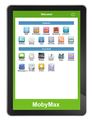
I've got some great news! One of my lucky readers will win a Moby Max Tablet!!!! Entering to win is so simple, just Like my facebook page, subscribe to the newsletter, or follow me on twitter! Hurry the contest ends at midnight CST November 12th 2014Check out more about the tablet hereEnter below!!!a Rafflecopter giveaway
Patricia J. Brown
.
Blog
.
<span class='date ' tip=''><i class='icon-time'></i> Aug 05, 2015 03:43am</span>
|
|
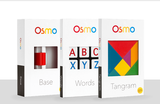
Osmo is a unique gaming accessory for the iPad that comes with games that will change the way your child plays. Created by two ex-Googlers and a former Disney executive, Osmo combines real physical objects with the virtual world of an iPad. It uses a simple plastic stand, a mirror, and a handful of common objects to create a unique gaming experience. Tangible Play’s Osmo lets kids play games on their iPads using pens, paper, and puzzle pieces. "Instead of a virtual reality game, we wanted to build an ‘actual reality’ game," says co-founder Pramod Sharma, "We wanted something that didn’t require electronics, WiFi, or a battery, and couldn’t be easily broken. And it needed to be deep. We don’t want you to play it for just a day; we want you to be able to play for months."The Osmo consists of a Reflector mirrorthat attaches to the top of your ipad, a base that the ipad sits in, and 3 different games for students Tangram, Words, and Drawing.This device is only $79 for the reflector, base, and 3 games. One other great feature is that with the Word game teachers can upload their own images and words to the app. How does it work?Install the 3 free apps on your ipadPlace your ipad 2 (or later) into the plastic stand (It even works with a mini)Attach the mirror to the front-facing cameraLaunch the AppLet the Learning Begin! Check out first graders using the Tangram, and Word games.
Patricia J. Brown
.
Blog
.
<span class='date ' tip=''><i class='icon-time'></i> Aug 05, 2015 03:43am</span>
|
|
Apple did an awesome thing when they added the trailer feature into iMovie. You can easily create a professional looking video in literally minutes. Whether you are using the Mac version (desktop/laptop) or the iPad App, there are so many ways students can use iMovie Trailers to show their learning.Here is a short list:Book TrailersCommercialsPromotionalDigital StorytellingProject Based LearningScience ProjectsFamous PeopleThe list goes on.....The iMovie app is so simple to use, and if you are also using Google Apps for Education, the Open-in Feature within Google Drive allows you to share photos and video footage between ipads or computers to promote collaboration. You start by uploading the data to Google Drive, then on the iPad select the footage, then the open-in feature by selecting iMovie, or another compatible app.Watch this short video that explains the Book Trailer process from a student's perspective.I worked with 1st & 4th graders to create a Book Trailer on their favorite books. Check out some of their projects below.View more projects on Ms. Bergin's classroom blog hereFor a full lesson plan on how to incorporate book trailers into your classroom, check out my APP Flow on Graphite Common Sense Media website.What ways are using iMovie Trailers in your classroom?
Patricia J. Brown
.
Blog
.
<span class='date ' tip=''><i class='icon-time'></i> Aug 05, 2015 03:43am</span>
|
|
With over 300 million users, sharing over a billion files a day, Dropbox focuses on simplifying people’s lives by providing a reliable resource for storing data online. With the functionality to work seamlessly on any platform, on any device, and the ability to connect to over 300 apps, many educators find that dropbox basic is an appealing and practical option for sharing data with students and parents. Dropbox is free and easy to use by even the least tech savvy person. Dropbox Pro is the newest product and it has very useful and versatile features. Just $9.99 a month, or $99 per year. The price is justified by having more powerful features, a terabyte of space, and no more worries about storing large files on the go. Other great Dropbox Pro Features:Set an expiration date for sharing files. For example, an educator who teaches semester courses can set a date for the sharing privileges to expire after a certain date such as the end of a semester or quarter. Shared folders- when you share a folder, each recipient has the same folder on each computer. Recipients can edit files together.Set passwords for shared links which adds an extra layer of security and peace of mind for files. Only people with the password will have access to your files.Fast and most reliable sync. You can count on dropbox pro even when you are offline. It is ready for you no matter when you are pulling it up. Share Pro files with people who have basic accounts. Teachers can use pro, and share files with students who have basic accounts. Pro can share with anyone rather or not they have a dropbox account. Streaming Sync- allows you to share a really large file within a folder. You can drop it to the shared folder. As you upload the file, it will start downloading to everyone’s dropbox before it even starts sharing.View only permissions for shared folders allows you to determine if the recipient can edit or only view shared folders. Teachers can share course materials with students, but students can’t change the information. When making changes to large files already uploaded to dropbox pro, the file does not have to be re-uploaded. Dropbox just updates the changes in the existing file, saving time.Saving screenshots in a snap (Students can take a screenshot of a chart needed for a homework assignment, or of a rough-draft image they’re building for a project, and that screenshot will automatically save to their Dropbox account, with a link copied to their clipboard for easy sharing).Remote wipe (Working on a big thesis and lost your computer? With Remote Wipe, users can remotely delete data from any device linked to their Dropbox Pro account — helping to ensure important stuff doesn’t fall into the wrong hands.Dropbox Pro has fantastic features that improve the functionality and efficiency of online storage.
Patricia J. Brown
.
Blog
.
<span class='date ' tip=''><i class='icon-time'></i> Aug 05, 2015 03:42am</span>
|
|
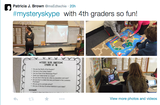
Kuddos to Ms. Bergin & Mr. Kelley Mystery Skype Experts!Ms. Bergin & 4B for participating in their 2nd Mystery Skype of the Year. They used their master detective skills to locate the mystery class first. They also got a special treat--Dr. Jahnke ( our district superintendent) got to help them, and she TWEETED about it!!Mr. Kelley and 3K also completed their first Mystery Skype before winter break! Check out these photos and special tweets!what to learn more about Mystery Skype? click here
Patricia J. Brown
.
Blog
.
<span class='date ' tip=''><i class='icon-time'></i> Aug 05, 2015 03:42am</span>
|
|
How can you prepare students for workplace experiences that don’t exist yet? As an educator in this digital age, that’s one of my biggest challenges.Our students now in elementary school have never had a time in their lives where mobile technology wasn't present. Look at the most innovative technology we have today: iPhone, ChromeBook, Galaxy Note, iMac, or whatever your favorite tool might be. You are literally looking at the worst piece of technology our students will see in their lifetime. Technology will only get better, because we are constantly working to improve it and make it better. As educators, we need to embrace this reality, and allow our classroom learning experiences to mimic what our students encounter everyday.As the second half of the school year begins, educators around the world share a common focus on preparing our students for standardized testing. The data and results that come from testing can show powerful trends about student achievement, but especially in an age when technology is constantly changing, have you ever wondered if there were other ways your students can creatively show their learning, in a timely, and efficient manner?The real test is finding ways to truly get your students excited about learning and showing what they know in non-traditional ways. Here are a few of my favorite digital tools that help teachers do just that.Kahoot.it: This is a free, game-based classroom response system. The website allows you to assess students’ learning in a fun and engaging way, and it is very simple to use. What sets this response system apart from other tools is that students are in competition to see not only who gets the answer right, but who answers first. At the completion of each question, it ranks the participants in order of who clicked the answer the fastest. You can add images, videos or text as questions. Students can use computers, laptops and mobile devices such as tablets and cell phones. There is also a survey feature. No need to register students: they sign into the game page with the game pin you provide. It takes minutes to set up!EdPuzzle: This is a free and incredible-easy-to-use video platform that helps teachers save time, boost classroom engagement and improve student learning through video lessons. EDpuzzle also collects data as students watch and interact with the video. Take a video from Youtube, Khan Academy or TeacherTube and crop it to use only what you need for your lesson, record your voice on top to explain, add clarifications, or add a video introduction. Embed quiz questions along the way, to check for student understanding, track who watched the video, prevent skipping, and see quiz results through the simple to read student reports. Allow your students to create their own video lessons, to create a deeper learning experience. Students can view the videos on the website, or the app, or you can can embed the lesson on your website. It’s also a perfect tool for flipping your classroom.Flipgrid: Although Flipgrid is not free, it is affordable--teachers pay as little as $0.22 per student. With Flipgrid you can create discussion style questions that students respond to through video. It allows for you to easily provide students with an authentic audience. Students can receive "likes," and the videos can easily be shared to social media, or by a web link.Blubbr: This lets you play and create video trivia games. Using video clips you create, or find online, you can find out what students know about specific subjects. There are ton of videos already made.Jeopardy Labs: Have you ever tried creating a Jeopardy game from scratch using PowerPoint? What a daunting task! Jeopardy labs simplifies the game creation process, allowing you to focus on creating challenging questions, rather than making sure links work. This online game website allows you to create your own template online, or browse their library for templates made by others.Brainrush: This website allows you to create and share your own games. Brainrush has four quiz-like game templates to choose from, including options for flashcards, labeling/sorting and hotspots diagram matching. You can upload your own images and add your own text. The even cooler feature is that Brainrush automatically differentiates the assessment based on the answers the student gives. Here's an example: say a student labels certain states incorrectly on a map. The quiz will automatically assess the student on those missed questions until they achieve a higher accuracy rate.Flubaroo: If you teach at a Google Apps Education School, you can use Flubaroo to create simple and quick quizzes and tests, and have them graded right inside of Google Apps. Flubaroo is a Google sheets add-onthat grades quizzes simply, scores them and publishes them to a spreadsheet.Quia: A one-year individual subscription to Quia costs only $49 (after a 30-day free trial), and it has over 16 different templates for creating quizzes, surveys, and websites. Create a Learning Management System to keep track of assignments, and calendar dates. Quia also provides access to over 300 million shared activities from other teachers.Quizlet This website is a free resource that allows you to study for anything. Quizlet's flashcards, tests, and study games make learning fun and engaging for students of all ages. Other features include the ability to track your own progress and compete with friends. This tool works on multiple platforms, and mobile devices.Instead of focusing our time and energy complaining about systems we can’t change, we educators can flip the script and use more innovative ways to collaborate and use formative assessment as a natural and ongoing part of a student’s daily workflow. I recommend trying different options to discover which works best for the structure of your classroom and the level of your students. Check out this list of more of my favorite digital assessment tools.What other digital formative assessments do you find most effective? Suggest them in the comments below!This piece was originally posted in edsurge
Patricia J. Brown
.
Blog
.
<span class='date ' tip=''><i class='icon-time'></i> Aug 05, 2015 03:42am</span>
|