Blogs
|
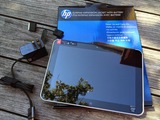
I recently received an HP ElitePad 1000 G2 for review, and decided to put it through its paces as I created a new set of Bloom's-related applications -- Bloomin' Windows.HP ELITEPAD 1000 I had not spent a lot of time with a Windows 8.1 Professional slate tablet. I had fooled around with the Microsoft Surface RT a bit, but I was unhappy with the fact RT did not allow the installation of "regular" programs. In addition, the RT tablets could not authenticate on a school network, and I felt their use in schools would be limited.The HP ElitePad 1000 is a beautiful tablet! It can run the 64-bit Pro version of Windows 8.1 so it will work well on school networks. Its 10.1" diagonal screen will allow it to be used for the Common Core tests and there is also a bundle available that includes Office Home and Student 2013. (The screen is also more readable outside than any laptop or tablet I have used.) There are a full range of accessories available to meet specific needs. I received the HP Expansion Jacket with Battery with the ElitePad 1000. It adds 2 USB 3.0 ports, an HDMI port, its own SD card reader, access to the microphone/headphone jack and a battery that is rated to allow you to use the tablet's and the case's battery for a total 20 hours! It does add .86 pounds (450g) to the tablet, but, if battery life is something you care about, it is a must-have accessory. The tablet and the Expansion Jacket re-charge at the same time.There is also a Productivity Jacket available which might be more suited for schools. It includes a keyboard, 2 USB 3.0 ports, and an SD card slot. It, too, charges as the device charges. The battery life of the tablet is rated for up to 10 hours, so the HP ElitePad 1000 should get through the school day on its own battery.There are adapters available for hooking up to projectors if you do not have a WiFi projector in your classroom-- both an HDMI and a dual HDMI/VGA adapter. There is also an Ethernet adapter,, a serial adapter, a Smart AC power adapter, and an external USB port adapter. (As with most other tablets, the adapters take up the charging port on the tablet, so you cannot charge the device and use an adapter at the same time.) HP ElitePad 1000, Expansion Jacket with battery, and USB adapter The specs of the Elite Pad 1000 G2 include:Intel Atom Processor (quad-core Intel Bay Trail Atom)4 GB RAM64 or 128 GB solid state driveBright and beautiful 10.1" (1900x1200) Gorilla Glass display Dual cameras: 2.1MP HD (front) and 8 MP with flash (rear)HD audio with 2 stereo speakersSDXC card readerUSB port (with optional adapter) Microphone/headphone jack Up to 10 hours of battery lifeWiFi (a/b/g/n) and Bluetooth (4G is an option)Weight: 1.5 lbs.Dimensions: 7.01 x 10.28 x 0.36 in. (178 x 261 x 9.2 mm)BLOOMIN' WINDOWSAfter getting comfortable with using Windows on a slate tablet, I began to think about the creation of another entry for my Bloomin' Apps page. A few weeks ago, I received a note from David Lopez, a Microsoft Innovative Educator Fellow. He had created his own version of a Bloomin' Windows graphic. He prompted me to think about the need for one in the many schools that are using Microsoft Windows. I decided to start my own from scratch so I could spend some time investigating the applications in the Windows store.My goal was to use applications that come with every Windows machine (or are freely downloadable as extras), including the use of the Office Suite applications, and then adding applications from the Windows Store. I spent a lot of time combing the Windows store for apps that were available through that venue. I could not find apps to meet all the spots on the grid, so did resort to a couple of Web 2.0 online tools. I understand I could have populated the entire grid with online tools, like the ones I have on this page, since the ElitePad 1000 can use all of those tools. But that would not have helped me learn about the many applications and apps that are available from both Microsoft and other publishers that are downloadable from the Windows Store and usable on the ElitePad 1000 even when it is not online.I also decided to become more proficient with ThingLink while I was creating this Bloomin' Windows grid. I identified the apps and applications for each level of Bloom's, created the background image for my ThingLink creation, and then used "hot spots" to link out to the applications, apps, and tools. I embedded the Bloomin' Windows graphic on the Bloomin' Apps page, but you can also view and use it below.Let me know your thoughts via email. Are you already using the HP ElitePad 1000 in your school? What are some cool ways you use it to support teaching and learning? Do you have other favorite Windows apps that are popular with your students or teachers?
Visit Kathy's Web pages:
Kathy Schrock's Home Page
Kathy Schrock's Guide to Everything
Kathy Schrock
.
Blog
.
<span class='date ' tip=''><i class='icon-time'></i> Aug 05, 2015 06:02am</span>
|
|
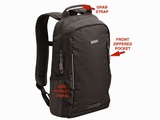
I recently acquired two new tech accessories I want to share with you!STM Aero Small Laptop BackpackI was able to take a look at this laptop backpack at the FETC15 conference in Orlando last month. After examining it, I realized this laptop backpack was one that would work for me! Here are the features I love, in order of importance to me when traveling:SIZE: The STM Aero is intended for a 13" laptop, but I only need room for the 11.6" MacBook Air. Many backpacks sized for 13" laptops are big and bulky. This one is not! The outer dimensions are only 16.14 x 10.24 x 5.51 inches. The laptop device space is 9.05 x 12.8 x 0.98 inches, which will fit up to a 13" MacBook Pro Retina. In addition, is very lightweight at 1.5 pounds when empty! It comes in Berry red, black, and gray. (I opted for black since it does not show the dirt!)IPAD: I wanted a dedicated pocket for my iPad Air 2, and this bag includes a nicely lined one of these, too.BAGGAGE LOOP: The back of the STM Aero includes a luggage handle pass-through on the back to make it easy for me to carry it on top of my roller bag when I need to. KEY STRAP: One thing I always worry about when traveling is misplacing my car keys. The STM Aero includes a strap and hook for attaching my keys!INSIDE SPACE: The STM Aero is not very deep, but I can easily fit my technology accessory bag with the adapters, power supplies, extension cord, and additional items in the space. SIDE POCKETS: I often carry a water bottle, so a side pocket is a necessity for me. This backpack has 2 side pockets, so I am using the other one for easy access to my in-ear headphones.STRAPS: The STM Aero has comfortable, padded shoulder straps and back, and also includes a "sternum strap" that connects the straps in the front in case I am carrying a heavier load. There is a grab strap at the top of the backpack which makes it easy to carry down the plane aisles.FRONT POCKETS: The STM Aero has a zippered, soft-lined pocket on the front which includes two slip pockets (one that I use for my iPhone 6+ and the other for my Wayfarers) and I store my boarding pass in the larger section for easy access to it.INSIDE POCKETS: Inside the STM Aero, there are three more slip pockets, two pen slots, and a deep zippered pocket. I marked up some STM Aero images so you can view the components I included in the review.When fully loaded, the STM Aero Small Laptop Backpack retains it shape and is very comfortable to wear. If you need more space for your items, check out the larger laptop bags and rollers on STM's site!EQUIL SMARTPEN 2 I know we already have iOS and Android devices with drawing tools and external art/drawing tablets. And there are electronic pens that can collect your notes and send them to your computer when you use special notebooks for taking notes.I had read some reviews about the Equil Smartpen 2 and thought it hit the sweet spot for both notetaking and drawing in a more traditional way.The Equil Smartpen 2 includes a reciever that you clip to any piece of paper, pad, or notebook, a regular size pen, and extra pen tip, and a cool case for carrying and charging.Equil Smartpen 2As you are drawing or writing, and you are connected via Bluetooth to your Mac or Windows computer or iOS device, what you are drawing is transferred in real-time to the computer or iOS or Android device. You can then turn handwriting into text if you want to on the computer or tablet. It is easy to begin new "virtual" pages by pushing the button on the receiver. The receiver can hold 4 GB of information.Real-time transfer of drawing to tabletThere are two apps for the Equil Smartpen 2 for the iOS and Android devices - Equil Note and Equil Sketch - one for writing and one for drawing. I think the drawing app is a paper-based sketchnoter's dream come true! (Equil Note is also available for the Mac and Windows platforms.) You don't need to be Bluetoothed to a device when you are taking notes or drawing. You can simply use the pen and the small receiver, which will collect the information, and send it to your computer, tablet, or phone later. (This saves some battery life, since the BT connection can be shut off on the receiver while you are writing/drawing.)The notes are synced across your devices using iCloud, Dropbox, or Evernote and also share with social media.I can't seem to locate a stylus tip for the pen to use with the iPad as shown in the video. (Perhaps that was scrapped during development.) You can find out more about the Equil Smartpen 2 on their site!
Visit Kathy's Web pages:
Kathy Schrock's Home Page
Kathy Schrock's Guide to Everything
Kathy Schrock
.
Blog
.
<span class='date ' tip=''><i class='icon-time'></i> Aug 05, 2015 05:59am</span>
|
|
This post originally appeared in September of 2014 on my Discovery Educator Network blog, Kathy's Katch, where I pen a monthly blog post. Please take a look at the blog when you get a a chance. The new posts go up the first day of each month!_____________________________________________________________________________________ I have identified thirteen literacies important for students to master, which you can see below. Lisa Nielsen, in her blog post "Should the new math be financial literacy?" states "we have lost focus on preparing young people for what will matter in their real lives. If the education system were to provide some financial literacy classes for kids, it could make a tremendous difference in the economic success of society". Let’s examine some ways you can easily embed their literacies across the curriculum.Economic literacy, often called financial literacy, according to Atomic Learning, "targets the importance of making appropriate economic choices on a personal level, and understanding the connection personal, business, and governmental decisions have on individuals, society, and the economy". The report of the NASBE Commission on Financial and Investor Literacy also offers a useful definition: "Financial literacy is defined as the ability to read, analyze, manage and communicate about the personal financial conditions that affect material well-being. It includes the ability to discern financial choices, discuss money and financial issues without (or despite) discomfort, plan for the future and respond competently to life events that affect everyday financial decisions, including events in the general economy".STANDARDSSome states, such as Ohio, have an economic and financial literacy requirement in their Ohio Core state standards to be taught within social studies or another class. In their state, teachers certified in social studies, business education, marketing education, and family and consumer science are all licensed to teach financial literacy. These teachers can help develop a curriculum starting in the earliest grades to make sure these literacies are woven seamlessly throughout the curriculum at all grade levels.The Council for Economic Education has developed a set of standards for financial literacy that start in grade three.The strands include:Earning incomeBuying goods and servicesUsing creditSavingFinancial investingProtecting and insuringOf course, financial literacy strands are also found in the National Business Association’s standards, the American Association of Family and Consumer Sciences standards, and state standards, such as the ones in Ohio, Oklahoma (7-12), Nebraska (K-12) and New Jersey (4-12). There are even sets of standards, such as the Jump$tart Coalition’s National Standards in K-12 Personal Finance Educationthat can serve to help you embed economic and financial literacy across the curriculum.DISCOVERY STREAMING RESOURCESDiscovery Education Streaming includes videos that can introduce age-appropriate content to students titled "Financial Literacy for Students" and a professional development series titled "Financial Literacy: Teach it!" The links below will work if your district subscribes to Discovery Education Streaming.Financial literacy for students (2010)Financial literacy for students grades K-2The meaning of moneyCounting bills and coinsWriting out money: decimals and dollar signsFinancial literacy for students grades 3-5Earning powerNeeds versus wantssaving for a goalWhat do banks do?Financial literacy for students grades 6-8Creating a budgetSavings accountChecking accountHow to use a debit card and ATMFinancial literacy for students grades 9-12Security and banking onlineFiguring interestRewards and risks of credit cardsGetting a loan: car, school, or homeLong-term savings and investingFinancial literacy: Teach it! (2009)PreK-4Penny the pigCredit cluesCareer cardsClassroom economyCharity presentationsInsurance and floodsGrades 5-8Just interestComparing graham crackersFinancial goal settingDream citiesGrades 9-12Debt consultantsONLINE RESOURCESIn addition to economic and financial literacy associations, there are investment firms, banks, and government agencies who provide both online and offline material to help you weave financial literacy across the curriculum.Council for Economic Education: EconEdLink Personal FinanceIncludes lesson plans, up-to-date information, economic data and Web links for educatorsInteractive tools and lessons for studentsYour life. your money: What is financial literacy (PBS)" …dynamic, culturally aware (and true) stories of young adults in financial trouble. As their stories unfold, viewers learn how and why they ended up in trouble and how they got out."Federal Financial Literacy and Education Commission (US): MyMoney.govInformation, games and fun facts about money, saving and planning for the futureCurricula, lesson plans, tip sheets, guidance and helpful tools for teaching financial capabilityClearinghouse of federally-funded research reports, articles and data sets on financial capability and related topicsUnited States Mint: Financial LiteracyActivities and lesson plans about coin to promote basic economic understanding for studentsFox Business: The CentsablesA cable program support page with comic books dealing with financial literacy topicsFederal Reserve Bank (US): Lesson PlansLesson plans for K-12 dealing with financial literacy; includes a literature tie-inGames and simulations for K-12 students Northwestern Mutual Life Insurance Company: The MintInteractive scenarios for kids and teens dealing with saving, spending, protecting, and entrepreneurshipH&R Block: Dollars and SenseProvides and gathers ideas, news, tips, and tricks for teachers and students in the area of investing and savingsUniversity of Nebraska- Omaha Center for Education: Economic Education WebK-12 concepts and lessons plans for economic and financial literacy as well as links to data setsSpecial THEN (Teach History and Economics in Education), a 4th grade curricular tie-inMoney as you learnCommon-core aligned math lessons for teaching financial literacyNational Endowment for Financial Education: Tools for financial educatorsWorkshop kits and money management sites for college studentsCanadian Centre for Financial Literacy: Activity worksheetsA curriculum for financial literacy with a handbook and worksheets for adults or high schoolersPinterest search on "financial literacy"Financial literacy iOS apps blog post"Financial literacy" search on Google Play storeFinancial literacy iTunes U course
Visit Kathy's Web pages:
Kathy Schrock's Home Page
Kathy Schrock's Guide to Everything
Kathy Schrock
.
Blog
.
<span class='date ' tip=''><i class='icon-time'></i> Aug 05, 2015 05:59am</span>
|
|
Many of you have asked me to write a review of the Amazon Echo once I received it. "Alexa" arrived a week ago and I have been putting it through its paces.Amazon Echo is a networked connected speaker, music player, note-taker, and information source. You can learn about its specifics here: http://www.amazon.com/oc/echo/.To use the Amazon Echo, you simply speak aloud and ask a question or give an instruction to "Alexa". The more you speak to it, the more it learns your speech patterns and preferences.First off, it is a great speaker for playing music. Since I am an amazon Prime member, I have access to the Prime Music Library.I simply tell Alexa to "Play an artist" and music from that artist begins playing. I can ask Alexa to turn the volume up or down, stop, or even give another instruction while the music is playing. I do live in an open-space home (a geodesic dome) so the sound reaches all over the house! You can also play stations from iHeartRadio and other playlists you have hosted on Amazon.My favorite feature of Alexa is being able to tell her to add an item "to my shopping list" and it shows up in the Echo app on my iPhone. It seems like a silly thing to love about technology, but just be able to easily speak aloud to the Amazon Echo to create a shopping list is a beautiful thing! It also helps that the Echo is in my kitchen. I can also add items to a reminder list that shows up in the Echo iPhone app, too.Alexa can easily set a timer alert. This is great for those times when you want to be reminded about something that is happening later in the day. And, Alexa can tell you clean, funny, jokes any time of day by simple saying, "Alexa, tell me a joke".The Amazon Echo also provides information from weather sources, news sources, and can answer common questions found in Wikipedia articles. If you have an Amazon Fire tablet, you are presented with more in-depth information about your question in the Echo app on that device. After using the sophisticated Apple Siri for the last few years, the information you can get from the Amazon Echo pales in comparison. For simple content-related questions and weather forecasts, the Echo does a good job. But any more complex questions result in a "I do not understand what your are asking" response. Amazon's site says more features are coming to the Echo and these updates will be automatically installed over the air when they are available.The current features on the Amazon Echo work flawlessly. Alexa understands the artist I want to play, what I need added to the shopping list, what time to set the alarm for, and more. The ability to talk over a playing song and give a new command, ask a questions, or just turn the volume up is almost magic!You can read more about the capabilities of the Amazon Echo here.
Visit Kathy's Web pages:
Kathy Schrock's Home Page
Kathy Schrock's Guide to Everything
Kathy Schrock
.
Blog
.
<span class='date ' tip=''><i class='icon-time'></i> Aug 05, 2015 05:59am</span>
|
|
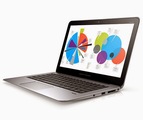
Many educators have to use both Windows and Mac platforms. Sometimes they have Windows laptops at school and a Macbook at home. They sometimes have iPads in the classroom and sometimes have Chromebooks. I have recently found out that it is possible to use both major platforms and keep your life in balance!I received an HP EliteBook Folio 1020 Ultrabook laptop to review. I had just sold my 11" Macbook Air and did not have a personal laptop to use, so the EliteBook came at the right time!My desktop is an iMac and I use and iPad and iPhone, so I decided to see if I could still keep up-to-date and work on my items in the Apple ecosystem using the HP EliteBook Folio 1020 Ultrabook.THE MACHINE The HP EliteBook Folio 1020 UltrabookThe HP EliteBook Folio 1020 Ultrabook is a very well-crafted, thin, light laptop with tons of up-to-date features! With the SSD drive, it turns on and shuts down quickly, opens installed programs quickly, and completes intensive tasks, like rendering, just great!The machine I received has these specs:Windows 8.1 ProIntel Core M processor: 1.2 GHz up to 2.9GHz with Intel Turbo BoostIntegrated Intel HD graphics 5300 12.5" diagonal LED-backlit touch screen (2560x1440)Backlit keyboard 8 GB RAM512GB SATA SSDIntel® Dual Band Wireless-AC 7265 802.11a/b/g/n/ac2 USB 3.0 portsHDMI port MicroSD card slotGlass Forcepad touchpadHeadphone/mic jackWebcam 720 HDFingerprint sensorNFCBacklit keyboardDocking connector Size: 12.2" x 8.26" x .6"Weight: 2.66 lbs.VGA/Ethernet adapterOne accessory I received with the HP EliteBook Folio 1020 Ultrabook was a smartly-designed dual Ethernet/VGA dongle that attached to the docking port. It was nice to have both of those connections in one adapter! As a presenter, I make use of Ethernet at the presentation table (to avoid the wireless that the participants use) and most projectors in venues are still VGA, so this is the perfect combination. The full datasheet with all the options may be found here.There were some features that were new to me. I love the built-in fingerprint scanner to log-in to the machine, the touchscreen for using Windows 8.1 in the way it was meant to be used, and the glass Forcepad touchpad. It took a little getting used to a "no click" touchpad, but, once I did, it really makes things faster and easier! The EliteBook Folio 1020 also has a quiet, backlit keyboard with just the right amount of travel to let you know you have hit a key. The speaker is top-loaded over the keyboard and, for conferencing, there are HP tools built-in that can minimize the background noise if you do not have a headset.MY USAGEI used the machine exclusively for a week, and, as I stated before, I wanted to see if I could keep up with the products I currently use on the iMac, iPhone, and iPad Air by using the HP EliteBook Folio 1020 Ultrabook.In schools, it is becoming less and less important to think about the hardware. The emphasis is on "Can I get done what I need to get done?" With many schools still running Windows enterprise networks, Windows-based machines are still very prevalent in the educational settings. But, with both major players (Microsoft and Apple) realizing that it is important to allow users "choice", I am able to use this cool new laptop and get my work done easily! I installed Firefox, Chrome, and Safari for Windows so I had access to all my browsers, plug-ins, and extensions.I have Office 365 for the Mac and was able to install the Windows version on the HP EliteBook Folio 1020 Ultrabook, so I have access to the Windows suite of tools (and love the fact I have Publisher back on the Windows side!) My favorite organization and curation tool is OneNote and I use it on all of my Mac and iOS devices. Of course, it is a Microsoft program so it was easy to sync it to my notebooks.I opened Outlook to begin the process of setting up my email, and imagine my surprise when it took me through the icloud.com set-up effortlessly! It brought over my folders and sub-folders and I was in business!I am using iCloud.com and the iWork Beta to work on my Pages, Keynote, and Numbers documents on the HP EliteBook Folio 1020 Ultrabook . As you can see from the images below, I can even present basic Keynote documents via the cloud. (Embedded videos don't seem to work, so I will just put them online and link to them within the slideshow itself.)I installed iTunes for Windows for my Apple music libraryI purchased Reflector for Windows for mirroring my iPad to the HP EliteBook Folio 1020 Ultrabook for presenting my iPad workshops.I am a Creative Cloud user, so was able to download my Adobe apps to the EliteBook Folio 1020 and use them.HP EliteBook Folio 1020 worked with my external DVD driveLogged into iCloud with the HP EliteBook Folio 1020Working on my Keynote presentation via iWork BetaFull-screen presenting with iWork Beta and VGA adapter Many of the other tools that I use are Web-based, such as the ones listed on this page. Online tools are often used in the education sector because, if the school does not have a 1-to-1 initiative, or teachers and students cannot bring devices home, with online tools they still have access to the tools they need. CONCLUSIONI am convinced educators can stop talking about being a Windows or Mac "shop" now. With new feature-rich laptops like the HP EliteBook Folio 1020 Ultrabook or the new 12" MacBook, and with the software and tools accessible from either platform, I think school districts now can make a choice based on their needs, rather than the hardware dictating what can and cannot be done!
Visit Kathy's Web pages:
Kathy Schrock's Home Page
Kathy Schrock's Guide to Everything
Kathy Schrock
.
Blog
.
<span class='date ' tip=''><i class='icon-time'></i> Aug 05, 2015 05:59am</span>
|
|
This post originally appeared on my Discovery Education Network blog, Kathy's Schrock Katch of the Month, on July 1, 2013 and is re-printed with permission from Discovery Education.IMHO or Why give constructive criticism?I recently had a brutally honest day. I was asked to review a new book coming out and write a blurb for the back cover. The title was something I was interested in, so I agreed. As I read along in a chapter about change, I came across the line. "Everyone knows that teachers, especially, are resistant to change." Hold on! This book was written for educators- why dis' them in the text? And who is "everyone" and why are teachers more resistant to change than anyone in a different profession? I re-wrote the sentence to be less insulting.As I read on in the technology sections, the exemplar lessons were pretty much the lowest level of technology use. The assessments were used to inform instruction but did not gauge student acquisition of content knowledge at all.So, as I found things that I felt could be made better and more meaningful to the proposed audience, I jotted them down and included additional ideas, quotes, and links to resources. I sent them along to the editor with a note stating I did not feel comfortable offering a blurb for the book because I did not believe in many of the tenets that were put forth. It was probably too late to do anything about the content, because the book looked like it was in its final form, but I felt compelled to do it.The same day, I was sent a lesson planning white paper that was released by a company. It was already on the Web. However, there were no author credentials on the pages and, since it was pedagogical in nature, I wanted to know that someone who was (or had been) a K-12 educator had written the piece. It was also a bit "preachy", so I reworked one of the paragraphs to something a bit different, without changing the content. I sent my thoughts along to them.I guess the point is, in education, where others sometimes tell us things we don’t agree with or we feel would never work in a regular classroom setting, it is up to us to give constructive feedback when you see something that you don’t like or don’t agree with.The important thing is to provide something other than simply writing "that sentence seems to put down the whole teaching profession". Re-write the content so it will not be demeaning to teachers and will make the teachers take more notice and continue reading the book or article. Provide links to resources that are, in your opinion, more appropriate than the samples that are provided in the article, book chapter, Tweet, or GOOGLE+ post.This goes for educational trends, too. Although it sometimes seems, IMHO, educators jump on lots of bandwagons for new pedagogical models, I don’t always initially agree with the idea or the implementations of the new idea. I read about it, look at successful practices, and then comment, constructively (I hope!) about it. For instance, I passionately disagreed with this blog post about turning Bloom’s Revised Taxonomy on its head. In this case, I publicly disagreed in the comment area, but oftentimes I may just write to the blogger directly and offer some alternatives for her/him to think about.Following are some links about constructive feedback and criticism. Most are not directly related to education or even the online realm, but you should garner some good ideas. As with anything you are passionate about, you need to wait a few minutes before posting a bit of constructive feedback to someone else. Passion in print comes across differently than passion in person, so you have to plan your responses carefully. Write a draft, look it over, take a walk, and then push the send button.http://www.flickr.com/photos/jamesyu/3764549/5 steps to providing good constructive criticismPeers working in the openYou’ve been doing a fantastic job. Just one thing….How to give feedbackGiving effective criticismConstructive criticism is a sign of your potentialWe need to encourage constructive discourse in our profession. I also feel we should to step back and think about all aspects of a plan or trend before becoming enamored with the idea just because everyone else is. Maybe parts of the new concept are useful to help students acquire both the 21st century skills and the content knowledge they need. But, perhaps other parts of the new idea won’t work in your situation and you have already discovered alternative methods that work well. You need to share those alternative ideas with the rest of us!Don’t be afraid to constructively criticize and don’t be afraid to be criticized, which you might be. If you are passionate about something or think something is not quite right about an aspect of education, write the company, the blogger, the Tweeter, the President, and let them know. Sometimes people just don’t know what they don’t know!Do you have any specific thoughts on ways to give online constructive criticism/feedback? There are not a lot of good ideas out there…please share via Twitter (@kathyschrock), Google+, or email me at kathy@kathyschrock.net!
Visit Kathy's Web pages:
Kathy Schrock's Home Page
Kathy Schrock's Guide to Everything
Kathy Schrock
.
Blog
.
<span class='date ' tip=''><i class='icon-time'></i> Aug 05, 2015 05:59am</span>
|
|
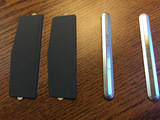
Three companies have sent me items to review and reviews of them follow. It is always fun to try out new technology gear!MagBack for iPadI am always on the lookout for ways to mount my devices in the car and around the house. MagBack for iPad is one neat solution! MagBack for iPad bills itself as the "world's thinnest iPad mount". The MagBack kit consists of two magnetic MagSticks, that can be mounted anywhere, and two MagBack Pads that mount to the back of the iPad. The MagBack is available for all models of the iPad Mini, iPad 2/3/4 non-Retina, and iPad Air 1 and 2, and comes in a variety of colors. The cost of the MagBack is $39 and you can also buy 3 sets of extra MagSticks for $19 to use to mount the iPad to additional places around the house or in your car.The MagSticks can be mounted on a wall, your car dashboard, your cookbook stand, or the wall behind your desk. They are a shiny silver and are 4.5" x .5", so are unobtrusive even when mounted to your car dashboard. The MagStick can be mounted on wood, a painted wall, fabric, leather, glass, or aluminum (and I am assuming the "pleather" on my car dashboard!)There is a template included in the package to ensure you get the MagBack Pads aligned correctly on the back of the iPad. These MagBack Pads also provide a nice gripping surface when you are carrying your iPad. The Apple iPad Smart Cover does not interfere with the MagBack Pads (and vice versa), since the MagBack Pads mount on the short sides of the iPad. MagBack Pads and MagSticksMagBack Pads mounted on the iPadsHere is a another review of the MagBack for iPad that includes additional screenshots and a video demonstrating the process for installation.MagBack is also accepting pre-orders for its MagBack for iPhone. In this model, the "Pads" are built right into the phone case and there is only one MagStick needed.Headset by ThinkWriteThinkWrite was formed in 2013, and designs low-cost mobile device accessories to support the education market.They sent me their headset (headphone and microphone combo) to review. This low-cost headset sells for $19.99 and volume discounts are available.ThinkWrite specifically made a headset to meet the needs of schools. It is very durable and is made from special plastic that allows the headset to be bent (as kids are likely to try) without breaking! The headset is constructed with a "pleather" material that is easy to clean and provides padding and adjustments to fit any child's head. Take a look at how indestructible they are!The inclusion of a mounted microphone that sits close to the student's mouth makes these very useful for students recording narratives and podcasts since the classroom noise level is kept to a minimum. And there is an in-line volume control to easily allow students to moderate the sound on something they are listening to.Teachers are always on the look-out for low-cost technology solutions for their classrooms, and I think these ThinkWrite Headsets are a winner!Reflector 2 by AirSquirrelsI have been a proponent of the Reflector app since the day it was introduced (when it was called Reflection). The Reflector app turns your Windows or Mac computer into an AirPlay device, allowing one or more devices to mirror their screens to your computer via WiFi or Bluetooth. If your computer is hooked up to a video projector, of course, the teacher and students can share their findings, work, or questions with the rest of the class. And it makes it easy for a teacher to roam about the classroom and clear up misconceptions by mirroring their device screen to the "big" screen.One of my favorite features of the Reflector 1 app is the ability to record the activity on the screen of the mirrored iOS device while it is mirrored to the computer. As one who creates lots of instructional videos, I use this feature daily. Even the sound comes over to the computer so it is included in the movie I produce. In a classroom, the ability to easily record an iOS device screen is invaluable when a teacher needs to record an on-going lesson for an absent student, for parents, or by wanting the ability to record a student's work for their digital portfolio.However, Reflector 2 ($14.99 per single license with volume licenses available) has bumped up the capabilities of the software! Devices running various operating systems can now mirror to the same computer! And whether the device is an iOS device, an Android device, or a Chromebook, the mirrored screen can be recorded! This is a wonderful addition for BYOD/T environments where students may have a mix of iOS devices, Android devices, and Chromebooks in the same classroom.Reflector 2 also allows the teacher to emphasize a certain device on the computer screen when multiple devices are mirrored, as well as hiding connected devices. In addition, the teacher can show a device full-screen to eliminate all other distractions for the viewerReflector Director is an iPad app ($6.99) that allows the teacher to handle the emphasizing, hiding, and previewing of mirrored device screens on the computer from the iPad, rather than having to sit at the computer to do so.There are a few additional programs that AirSquirrels makes that also may be helpful in a classroom. The Reflector for Android app allows iOS devices to mirror to the screen of an Android device (it does not enable Android mirroring.)Reflector for Amazon Fire TV and TV Stick ($6.99) allows one to mirror a Mac computer, Windows computer or Chromebook (in conjunction with AirParrot 2) to a Fire TV or Fire TV Stick as well as mirror any iOS device to your TV that has an Amazon Fire TV Stick.With all of these features, Reflector 2 meets the needs of teachers and students no matter what device they are using or need to share!
Visit Kathy's Web pages:
Kathy Schrock's Home Page
Kathy Schrock's Guide to Everything
Kathy Schrock
.
Blog
.
<span class='date ' tip=''><i class='icon-time'></i> Aug 05, 2015 05:58am</span>
|
|
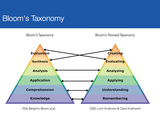
This is a re-posting of a blog post of July 12, 2013, which originally appeared on the now-defunct Sony Education Ambassadors site.If you were an education major in college, you are probably very familiar with Bloom's Taxonomy. In the image below, on the left, is the original Bloom’s Taxonomy, developed in the late 1950’s by Benjamin Bloom. On the right, is the Revised Blooms Taxonomy, published in 2000 by Anderson, a student of Bloom’s, and Krathwhol. The names of the levels were turned into action verbs since Anderson and Krathwhol felt that action verbs implied engagement and re-arranged them a bit.I want to point out is there is still a ton of instructional materials on the Web mapped to the original taxonomy and I encourage you to search for those "older" terms, also, for some good ideas.The image below includes both the original and revised taxonomies as well as the mapping of the levels to make it more clear when identifying resources to support them.However, when I think about Bloom's Taxonomy, I do not think of it as a triangle. The triangle image seems to indicate learners start at the bottom and move upwards. I feel that we use each level of the cognitive processes over and over as we begin to acquire new knowledge on a topic. My view of Bloom's Revised Taxonomy looks like the version below, The Cogs of the Cognitive Processes, with all of the levels inter-related and dependent on one another.REMEMBERING LEVELThe first cognitive level of Bloom's Revised Taxonomy is the remembering level. The remembering level involves finding information, storing it somehow and then recalling it. Activities involving this skill level include...Diane Darrow, in an Edutopia article, outlines the questions you need to ask when looking for and identifying apps to use to support this level of Bloom's.ANDROID APPS AND SITES FOR THE REMEMBERING LEVELInformation searching: Diigohttps://play.google.com/store/apps/details?id=com.diigo.androidDiigo is an online bookmarking tool that allows students to gather information, tag it, and annotate it. With the Diigo Power Note app, they can add text notes, bookmarks, cached pages, pictures, text messages to their Diigo library as well as access information already in the library.Retrieve information: Evernotehttps://play.google.com/store/apps/details?id=com.evernoteEvernote is a must-have app that allows students to gather assets dealing with a topic. It runs on all devices and operating systems and allows the user to take notes, capture photos, create to-do lists, record voice reminders and search of all these. It is an organizational tool each student should have!Recall facts and ideas: Pockethttps://play.google.com/store/apps/details?id=com.ideashower.readitlater.proOne tool that I have started using is Pocket, which downloads the items you add to it. This is a great way for students to have a hard copy of what they have found. They can view the collection visually or in a list. They can also easily get back to the original site.Mapping: Simple Mind Freehttps://play.google.com/store/apps/details?id=com.modelmakertools.simplemindfreeRemembering terms, ideas and facts can be accomplished with a concept map. Simple Mind Free lets students easily create a mind map, concept map, or flow chart. Students can use Simple Mind Free for all types of things, such as brainstorming new ideas, illustrating concepts, making lists and outlines, planning presentations, creating organizational charts, and more! There is even a desktop version available for Mac and Windows.Labeling a diagram: Skitchhttps://play.google.com/store/apps/details?id=com.evernote.skitchOne way for students to remember is to label a diagram or image or illustrate a concept.Skitch lets students--- Annotate: Add arrows, shapes and text to existing images- Create: Draw something new- Edit: Reposition, recolor and remove annotations at will- Share: Send sketches and annotations to Twitter, email or EvernoteTimelining: TimelineJShttp://timeline.verite.co/Timelining is another activity based at the remembering level. TimelineJS is not an app but a Web site. It works best through the Dolphin Browser.. A student visits the TimelineJS site, downloads a Google Spreadsheet template to his/her Google Drive, edits the sample content with timeline information, and publishes it. The student then goes back to the site, enters the published URL of the Spreadsheet, and receives the embed code that can be put into a Google Site, a Weebly page, or blog. This timeline can include video, too!These are just some apps to get you started! The Google Play Store offers a ton of other apps that can be used at this level (or sometimes at all the Bloom's levels!) You can find more suggestions on my Bloomin' Apps page-- look for the chart for Android apps!
Visit Kathy's Web pages:
Kathy Schrock's Home Page
Kathy Schrock's Guide to Everything
Kathy Schrock
.
Blog
.
<span class='date ' tip=''><i class='icon-time'></i> Aug 05, 2015 05:58am</span>
|
|
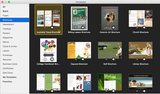
One of the things I have missed since moving to the Mac a few years ago is Microsoft Publisher. I loved that program and even co-wrote a book about it! It was a simple-to-use full-featured desktop publisher. I know that Apple's Pages for Mac does allow some of the desktop-publishing features such as text boxes and images that can easily be moved around on a page you are creating, but it does not seem like a good substitute for me. I love Canva online for making graphics, but I needed a program that ran on my local computer.I have been looking for a desktop publisher for the Mac that includes lots of templates but also allows me to start from scratch. Pearl Mountain's Publisher Plus for Mac (or via the app store) seems to meet my requirements for a desktop publishing suite! They include over 170 easily-editable templates for brochures, flyers, newsletters. catalogs, posters, magazine covers, menus, invitations, cards, letter, envelopes, resumes, business cards, certificates, and disc case covers. The interface is clean and easy to navigate as you can see below.Once you pick a type of publication in Publisher Plus to work on, the templates are totally customizable. When you chose an image or component, you are presented with the common Mac menu of options in the right-hand pane. You can also change the paper size, margins, the color of the background, and even hand-draw vector-based images with the mouse on the publication if you want to.There are basic image libraries included in Publisher Plus, but Creative Commons icons and images are so plentiful on the Web nowadays, you can easily find your own to import. And, of course, you can use your own images and photographs.The publication file can be shared and saved in all the common formats we need to use. You can save as a JPEG, PDF, PNG, TIFF, BMP, and PSD file. You can email, message, AirDrop, and send to Facebook and Flickr for publication. Unfinished publications can also be saved out a a Publisher Plus file format (.ppl) that allow editing by others with Publisher Plus for Mac. Here is a link to the FAQ's for Publisher Plus for Mac if you have other specific needs.You can download a fully-functioning trial version of Publisher Plus for Mac here. The full version is $39.90 from their site ($19.99 from the Mac app store) and includes additional no-cost templates in each of the categories and no watermarks on the exported projects. I am hoping, as more educators try out this program, there will be an educational template category for common classroom and school publications or educational templates to edit in each of the template categories. Or maybe, we could create our own shared file area online of .PPL files so anyone using Publisher Plus for Mac could download and edit them.I think my search for a simple-to-use and full-featured desktop publishing program is over now that I have found Publisher Plus for Mac!
Visit Kathy's Web pages:
Kathy Schrock's Home Page
Kathy Schrock's Guide to Everything
Kathy Schrock
.
Blog
.
<span class='date ' tip=''><i class='icon-time'></i> Aug 05, 2015 05:58am</span>
|
|
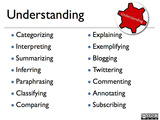
This is a re-posting of a blog post of August 5, 2013, which originally appeared on the now-defunct Sony Education Ambassadors site.On July 7, 2015, I provided an overview of Bloom's Revised Taxonomy and include a set of Android apps and Web sites that could be used to support teaching and learning at the remembering level. If you did not read that first installment, please take a moment to do so...the introduction to the series can be found there.UNDERSTANDING LEVELThe next cognitive level of Bloom's Revised Taxonomy is the understanding level. The understanding level involves explaining and constructing meaning using various methods. Activities involving this skill level include....Diane Darrow, in an Edutopia article, outlines the questions you need to ask when looking for and identifying apps to use to support this level of Bloom's. ANDROID APPS AND WEB SITES FOR THE UNDERSTANDING LEVELDescribing: Lensoo Createhttps://play.google.com/store/apps/details?id=com.lensoo.createLensoo Create is a screencasting program for the Android platform. A screencasting program allows a student to describe a process by including a real-time voice-over while drawing on the "screen" or when marking up an image. For no-cost, Lensoo Create allows up to 15 minutes of recording time, import of custom background images, and PDF file imports.For a $4.99 in-app purchase, you can get up to 30 minutes of recording time, the custom background and PDF import, additional shapes to use, and real time video capture right in the app. If you subscribe to Lensoo Create for $1.99 per month you get all of these features plus unlimited watermarked HD downloads.Lensoo CreateClassifying: Big Fat Canvashttps://play.google.com/store/apps/details?id=com.justinholmgren.sketchpad&hl=enBig Fat Canvas is a useful drawing tool, and, with the ability to change colors and widths of the drawing tools, student could use the app for classification of items, a skill at the understanding level. The completed drawings can be sent via email, or to Dropbox, Picasa, and Evernote. For older students, the Picasso app might be a good choice, too.Big Fat CanvasPicassoSummarizing: Dual Screen Browserhttps://play.google.com/store/apps/details?id=jp.mmasashi.android.dualscreenbrowserThe Dual Screen Browser allows the student to view two Web pages side-by-side on the screen. If one of the windows is an open Google Doc while the other window is the content that needs to be read, students can take notes and summarize while reading the other page.Dual Screen BrowserExplaining: Video Edit +https://play.google.com/store/apps/details?id=com.w6soft.videoeditVideo Edit+ allows the student to use images or video from their gallery or shoot video right on the tablet. Students can import audio or record it then record it directly to explain a process, a book, a science lab, a physical education activity, etc.Video Edit+Interpreting: Slide Show Creatorhttps://play.google.com/store/apps/details?id=com.amem&hl=enWhen students need to interpret something, such as this lesson about famous movie lines, they can use a slide show creator to include images from the Web or taken with the camera. The finish slide show lives on their site and also can also be emailed or uploaded to YouTube. The feature to add text to a slide is planned.Slide Show CreatorCompare/Contrast: Mobile Decision Makerhttps://play.google.com/store/apps/details?id=com.broadreachsoftware.decision&hl=enOne way students can demonstrate understanding is to create a T-chart with compare/contrast or pro/con explanations included. Mobile Decision Maker allows students to create these charts on the tablet. Each entry can be weighted to help students make a final decision based on weighting.Compare/ContrastFOLLOW UP These are just some apps to get you started! The Google Play Store offers a ton of other apps that can be used at this level (or sometimes at all the Bloom's levels!) You can find more suggestions on my Bloomin' Apps page-- look for the chart for Android apps!
Visit Kathy's Web pages:
Kathy Schrock's Home Page
Kathy Schrock's Guide to Everything
Kathy Schrock
.
Blog
.
<span class='date ' tip=''><i class='icon-time'></i> Aug 05, 2015 05:58am</span>
|