Blogs
|
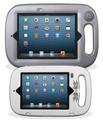
I recently had the opportunity to try out the GoNow iPad case, a sturdy iPad case built for the K-12 market.The GoNow case is available for both iPad and iPad Mini and solves some concerns that schools often have with the iPads. The built-in handle is a real plus for students carrying around the devices. I have seen classroom lessons for the younger students on how to carry the iPad (hug it to your chest, etc.). The handle on the GoNow case just works! In addition, the case provides a level of protection from damage to the iPad for students of all ages.For the iPad Mini, which is so light, the GoNow case provides some "heft" for the Minis when they are used in the early grades or in the special education department. For those of you who have held an iPad Mini, you know what I mean. It is so light on its own, you sometimes have a fear of letting it go!There are additional thoughtful features built into the GoNow case. The case screws open easily and the iPad is placed in the case, with a rubberized sheet to protect it. By using screws, the iPad is securely encased and protected.There is a channel inside the GoNow case that redirects the iPad's speaker audio to an external speaker grille on the front of the device. This allows the audio to be increased to a level that is easy to hear, even in a noisier classroom setting. This feature is a great one for students using the devices as an AAC devices as well as when two or more students are sharing a video on the iPad or a student does not have headphones available.It's a bit hard to see in my photo, but the volume switch (and the power switch) are recessed. The switches are easy to access but prevent accidental volume raising or shutting off of the device.The front of the GoNow case has a small switch that turns the screen on and off. It is a very handy way for students to turn off the screen when not using the device and avoids having to hit the power button.Attainment Company, the creator of the GoNow case, is a company who specializes in assistive technology for all ages. The GoNow case certainly will be beneficial for that population, but its features make it a good solution for any K-12 classroom!
Visit Kathy's Web pages:
Kathy Schrock's Home Page
Kathy Schrock's Guide to Everything
Kathy Schrock
.
Blog
.
<span class='date ' tip=''><i class='icon-time'></i> Aug 05, 2015 06:09am</span>
|
|
This is a re-posting of a guest post to the SmartBlog on Education blog which appeared on February 6, 2013. It is tagged in their "emerging technologies" section._______________________________________________________________________________I am a gadget geek. And I love my iPad. However, there are plenty of other choices on the market today, and I have come to realize that a mix of devices may be a better choice in the educational setting. The Apple App Store is full of well-vetted and useful software. When you hear "there is an app for that," it seems to be true! From content-based applications that can be used for everything from remediation to enrichment, and apps that let students create videos, audios, simulations, infographics and more, the use of the iPad to support teaching and learning is truly remarkable! However, the iPad really shines as a one-to-one device. Personalization, choice of apps and work that lives locally on the device makes you feel connected with your iPad. A shared cart of iPads, although something that is affordable for schools, is probably not the best choice. Taking care of the installation of apps and maintenance of the devices, as well as providing a positive experience for each shared user, is not easy. I often suggest schools keep a cart of iPads in a single classroom, have the teacher and students document their successes (and failures) and provide the rationale to extend the model of a one-to-one initiative to other classrooms. I recommend the Google Chromebook for a shared cart of devices. In conjunction with becoming a Google Apps for Education school or district, the Chromebook allows easy access to each shared user’s content. Since each user’s work lives in the cloud, and the Chromebook makes it easy to log on to the device, it is perfect for a shared environment. There are many extensions for the Chrome browser that allow you to do everything from editing images to using a math equation editor. And, the Chrome operating system lets the user work on Google Docs and Spreadsheets when not connected to the Internet and syncs them up when you do get in a wireless environment. The Samsung Chromebook has a solid state drive and boots up within seconds, has a school-day-long battery life, and is less than $250. Android devices are another choice for classroom use. Google Play, the app store for Android devices, is chock-full of apps, but is not as tightly controlled or vetted as the Apple App Store. I have seen some districts choose the Kindle Fire as their Android-based tablet of choice. Kindle devices do not natively have access to the Google Play store, but have a smaller group of apps available in the Kindle Fire Apps store. If your school has settled on the Android platform, I suggest going with an Android device that can access all the apps in the Google Play store, such as the Google Nexus 7 or Nexus 10 or other Android-based models such as Acer, Samsung, Asus, Motorola, Toshiba, Lenovo and Sony. (I am a Sony Education Ambassador and have the Sony Experia Tablet Z which is a very nice choice!) Another crop of tablets run on the Windows operating system. Microsoft makes the Surface and Surface 2 tablets that host a version of Windows called Windows RT. Windwos RT includes access to the Office suite, but other apps must be installed from the Windows App store. (Added 11/16/13: The Windows Surface RT can not join a domain if that is something you need to have it do in your school.) The Surface is also available with Windows Pro, which will run all the Windows programs that you can now run on your desktop. However, there are also some great 10.1-inch tablets available right now that run the full version of Windows 8, such as the Samsung Ativ Smart PC , the Lenovo Thinkpad Tablet 2 and the Asus VivoTab Smart. I was impressed with the keyboard docks available for these devices. The keyboards give the tablets a clamshell design, like a regular laptop.(Added 1/24/14: I recently picked up the Dell Venue 8" Pro Windows tablet. It runs the full version of Windows 8.1 and is low-cost. The items on the screen are a bit small, but it still amazes me that I can carry around a device with Windows in one hand! The tablet is speedy, has a front an back camera, a micro-SD slot, and you can hook up an external DVD drive, HDD, or flash drive with an adapter like this one. The screen size would not meet the size requirements for the CCSS tests, but, if that is not a concern, give this one a look!) Choices are good, and a mix of devices and operating systems should be considered in the school setting. Take the time to try each one out, and pick the one that is best suited for the grade level, teaching environment, and what best gets the technology out of the way and allows learning to occur!
Visit Kathy's Web pages:
Kathy Schrock's Home Page
Kathy Schrock's Guide to Everything
Kathy Schrock
.
Blog
.
<span class='date ' tip=''><i class='icon-time'></i> Aug 05, 2015 06:09am</span>
|
|
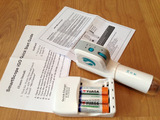
Well, we are still in the throes of a blizzard and I have no Internet access, no Wi-Fi, no cell service, and most of what I want to work on is in the cloud. (Note to self: keep copies locally when a blizzard is approaching!)The SmartScope iGoHowever, I did have a new gadget to review, and I managed to get to that! The item is the SmartScope iGo Wi-Fi microscope. It is a handheld microscope that works with both the iPad and iPad Mini, Android tablets, and the iPhone and Android phones. You can hook up to three mobile devices at once to each SmartScope iGo. When you turn the microscope on, it creates an ad-hoc (private) network between itself and the iPad/Android devices. You simply look at your settings in Wi-Fi area on your mobile device and chose the microscope's network. The password to join the private network is a default password that can be changed. (Quick start instructions.)Ad-hoc NetworkYou then simply launch the free Wi-Viewer app, which allows what is shown on the microscope to be shown on the mobile device’s screen. (Since you are on a private wireless network, the Reflector app will not work to mirror the iPad's screen, since the desktop and laptop have to be on the same Wi-Fi network. I connected to the ad-hoc network with the desktop, but Reflector would not allow mirroring.) To showcase what is on the iPad or Android device’s screen you will need a VGA connection to a projector or an AppleTV.Item I viewed with the SmartScope iGo View of the item using the Scope and the Wi-Viewer AppHowever, there is a simple way to solve this built right into the Wi-Viewer app! You can choose to record the entire microscopy session! The file is saved as an AVI file, which I was able to get off of the iPad and onto the Mac desktop through the Apps File Sharing section in iTunes. I could then open the AVI file in the VLC app and I also easily converted the AVI file to an MP4 file to be able to play natively on the Mac.The wireless SmartScope iGo microscope has all its features right at your fingertips when using the device. These include the focus button, the knob to increase or decrease the LED lights as needed, and a button to quickly take a snapshot that saves to the iPad’s or Android’s Photo app. The microscope comes with 3 rechargeable batteries and a charger and is rated to allow you about 3.5 hours of microscope use on a charge.Video recording using the SmartScope iGo (no sound) Screen for viewing the recordingsThe magnification choices, when using a full-size iPad, is 1x - 80x. I was using the iPad Mini, so my magnification was different. The Wi-Viewer app software has a quick start button to begin and end the recordings, the ability to view the recording on the iPad, and also has an image capture button. I can definitely see one of these devices for every two students in a lab setting, with one controlling the recording and images and the other student actually controlling the SmartScope iGo. And, as the teacher, you can hook up to each SmartScope iGo being used and both view and record what each pair of students is doing since up to three mobile devices can hook to one Scope. The mobile device and the SmartScope iGo can be up to 10 meters apart and still connect.The cost of the SmartScope iGo is $329, and there is an optional gooseneck stand available for $99 or a cradle for $49 . Contact info@smartschoolsystems.com if you want more information or wish to inquire about volume purchasing.P.S.Now, to get this project together without Wi-Fi, during the blizzard, I used Bluetooth to connect the Mover+ app on the iPhone to the iPad Mini to gather all the images onto one device. I then used the desktop component, Mover Connect, to move all the images to the desktop so I could work on this blog post. (Again using Bluetooth.) Since we still did not have Internet access, I moved the Word file, the images, and the video back to the iPad Mini via the AirDIsk Pro app and then used the Blogger app to post it. Just in case you were wondering!
Visit Kathy's Web pages:
Kathy Schrock's Home Page
Kathy Schrock's Guide to Everything
Kathy Schrock
.
Blog
.
<span class='date ' tip=''><i class='icon-time'></i> Aug 05, 2015 06:09am</span>
|
|
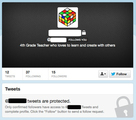
I am a big believer in "paying it forward". I know, from personal experience, that helping someone out or doing something nice for someone makes the world a better place. When that person you support helps someone else, and on and on, the movement spreads.I consider Twitter a perfect example of paying it forward. I find something to share I feel my followers will benefit from and, if they think so, they send it off to their followers, and the benefits multiply! If I see some great link or idea or thought from the people I follow on Twitter, I re-tweet it to my followers, and am happy to have found something of interest for them.I don't follow everyone who follows me on Twitter. As much as I would like to, I currently have over 22,000 educators who follow me on Twitter. I consider it an obligation to provide them with links, ideas, things I discover, and upcoming events of interest. I do throw in some personal things at times. I am hoping that is okay with them.I follow 212 people on Twitter. They are educators who provide me with great ideas, have different networks than I do and retweet items I never would have seen, and are always there when I have a question or concern. Of course, unless I follow a person on Twitter, they cannot direct message me. Some followers get very upset they cannot direct message me and chide me for not following them. That's silly. I hone my PLN to what I need and keep it manageable to make sure it is useful. It is in constant flux as I follow and unfollow tweeters. In addition, my email address is in my Twitter profile (something I suggest everyone should do) and any one of my followers can email me at any time!I look at the profile of each person who follows me on Twitter as they begin to follow me. It is disheartening to me that many educators continue to protect their tweets. They are not paying it forward, in my opinion. I want to visit their profile, see the things they are tweeting, and decide if I want to follow them. I don't want to be forced into picking to follow them, waiting for them to approve me, then checking out what they post, and then decide to continue to follow them or unfollow them.Tweets from users who have protected accounts do not show up in a Twitter search. I also didn't think others could re-tweet tweets from those that protect their tweets. I actually was unsure about this, so I asked my twitter followers.My tweet: Here are the first few answers I received (read from the bottom up)I found Ben's initial comment and then follow-up interesting, but true. Although Susan said the same thing about cutting and pasting. And my favorite was from Greg, who agrees with me, that teachers need to "tweet in public" and not protect their tweets.And Ben, who tells teachers that it is their digital footprint and their choice to keep their tweets protected, also stated:(Late addition: I am getting mixed messages on whether you can or cannot re-tweet protected tweets. It may be dependent on the browser-based version or whether you are using a specific Twitter client.)I truly believe that collaboration and sharing and participating are really important in social networks. I encourage teachers who feel they have personal stuff in their Twitter account, that they don't want the world to see, to create a personal Twitter account and protect that one. Keep your professional account wide open so others can see the great things you are tweeting, easily follow you to keep up with your new ideas and thoughts, and can re-tweet your super ideas to their Twitter followers!Please pay it forward!
Visit Kathy's Web pages:
Kathy Schrock's Home Page
Kathy Schrock's Guide to Everything
Kathy Schrock
.
Blog
.
<span class='date ' tip=''><i class='icon-time'></i> Aug 05, 2015 06:09am</span>
|
|
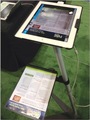
I continue to be impressed with the new items Ipevo comes out with to support teaching and learning.At FETC in January, I was able to see the attachment for the Perch iPad stand that allows you to use the iPad as a serviceable document camera.Snapshot from the Ziggi-HD 5 megapixel cameraThe Ziggi USB Document Camera is going to be updated soon to the Ziggi-HD model. I got my hands on one, and took at look at the output from its 5 megapixel camera (up from 2 megapixel in the previous model) with a resolution that was bettered from 1600x1200 on the original Ziggi to 2592x1944 on the HD model.The Ziggi-HD still includes a 2" macrofocus and controls on the head for exposure, snapshot, and autofocus. The iPevo Presenter software allows for a 6x digital zoom with the Ziggi-HD, too.I also used the Ziggi-HD to record a movie of a Sock Puppets presentation on the iPad to see how that would work. The other new cool thing from Ipevo is the ability to stream the images from any Ipevo document camera wirelessly to your iPad or computer with their WS-01 Wireless Station. And, with the addition of the Ipevo Whiteboard app, you can mark up the image on the iPad just like you can on an interactive whiteboard!Imagine your iPad is hooked up to a projector or wirelessly to a monitor or computer via Airplay (with AppleTV or Reflector) and your Ipevo P2V, Ziggi, or Ziggi-HD are projecting wirelessly to your iPad. It does it by creating an ad-hoc network between your device and the WS-01 Wireless Station, and you can attach your computer to that same network. How cool is that? (The WS-01 also acts as a bridge to your local Ethernet or wireless network, too, so you do not lose access to the Internet on the devices that .)Below is a short demo I made using the Ipevo Whiteboard app on the iPad and used Reflector to record the projected image on the desktop. There is no audio recording in the Whiteboard app, so there is no sound. You should be able to figure out what I am doing-- marking up, adding arrows, taking a screenshot, etc. The set-up is Ziggi-HD USB Document Camera attached to the Ipevo WS-01 Wireless Station, projecting the image wirelessly to my iPad which is hooked to the WS-01 via an ad-hoc network, marking up the image using the Ipevo Whiteboard app, and recording the whole thing via the Reflector app on the desktop. It sounds like a lot of techie stuff going on, but it is really easy! The manual that comes with the WS-01 (see it here) gives good directions.Items discussed in the blog post:Ipevo Home Page Ziggi-HD USB Document Camera (available soon at http://ipevo.com)Current Ziggi USB Document CameraIpevo Whiteboard app WS-01 Wireless Station (manual)Reflector app for desktop
Visit Kathy's Web pages:
Kathy Schrock's Home Page
Kathy Schrock's Guide to Everything
Kathy Schrock
.
Blog
.
<span class='date ' tip=''><i class='icon-time'></i> Aug 05, 2015 06:08am</span>
|
|
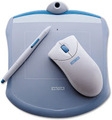
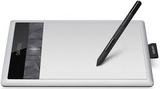
Wacom Graphire (2002)I have had a Wacom (pronounced "wah-kum") drawing tablet for years. In our district, we had computer lab sets of the Wacom Graphire2, which came out in 2002. The Graphire2 came bundled with software, including an early version of Adobe Photoshop Elements. Having a drawing tablet and a piece of software that easily allowed students to mark up images and create their own art products, opened an entirely new way of using a computer for our middle schoolers. The ability to hold a drawing tool just like they held a pencil was so exciting for them!The tablets still work today with the Mac and Windows machines!However, Wacom has continued to develop the capabilities of their drawing tablets. The Intuos pen tablets line includes various sized graphics tablets that can be used via pen or via touch. Their Cintiq pen displays line includes 13", 22" and 24" computer displays that have the ability to be used as graphic tablets, too!The line of pen tablets that are most affordable, and I feel would work well in a school environment, is the Wacom Bamboo Capture. The Bamboo Capture has a drawing area of 5.8"x3.6" and the Bamboo Create has a drawing area of 8.5"x5.4". The Bamboo Capture would probably work best in a computer lab because of its smaller footprint, but the Bamboo Create, with its larger input area, would work well in support of a graphics lab you might have in your high school. The tablets include the drawing pen and also work as a large touchpad for controlling items on your computer's screen with just your finger.Bamboo Capture (2013)Software bundle Both of these models have similar features and come bundled with software that would be useful for schools. I have been using a Bamboo Capture, and, in the box, both Adobe® Photoshop® Elements 8 and Autodesk® SketchBook® Express were included with the tablet. When using Photoshop Elements with the Bamboo Capture, the interactive pen is pressure-sensitive. That means, if you press hard, the lines are darker and if you draw lightly, the lines show up fainter. Wireless module One of the coolest accessories for these tablets is the wireless module. With a component plugged into the tablet and a USB receiver plugged into the computer, the Bamboo Capture drawing tablet can be used while walking around the classroom. With this accessory, you can control your desktop easily while away from your desk, as well as mark up an image projected from your computer. You can even hand off the tablet for students to solve those tricky math equations from their seats!Use in online classes and Webinars I have also used the Bamboo Capture in both in my online classes and my virtual presentations. In the online classes, when I hold a synchronous session with the students in Adobe Connect, we have a shared whiteboard. The Bamboo Capture makes it easy for me to mark up this virtual whiteboard. In addition, when using any Webinar tool that allows me to share my screen (Adobe Connect, Skype, Google+ Hangouts, Screenleap, etc.), I can use the Bamboo Capture to mark up a Web page or slide, edit a student paper, or point out, graphically, items I want to the students to take notice of. Since most of these Webinars are recorded, the actions I take with the Bamboo Capture are saved along with the rest of the Webinar. I have also used the Bamboo Capture when using online screen recording tools such as Screen-cast-o-matic and Screenr, and off-line tools such as TechSmith's Camtasia and Adobe's Captivate, when creating instructional screencast videos for my students or Webinar participants. Bamboo Dock and softwareThe Bamboo Dock, which is the desktop software installed with the Bamboo Capture drivers, includes its own suite of software. This software includes Doodler, Free the Bird, and Landmarker. I tried each of them and made a few screenshots and screencasts so you can see the capabilities.Free the Bird"Free the Bird" is a physics game, but also gives the user practice picking a point with the tablet's stylus as well as drawing. LandmarkerLandmarker allows you to enter a zip code or place name and you are presented with the location on a map. You can then mark it up with the stylus and save it out as a JPEG. Bamboo PaperBamboo Paper both comes with the Bamboo Dock software and is also available as an iPad app. It allows you to take notes, bring in images, create separate notebooks for your information and much more. You can easily share the notebooks with others, too. InkwellInkwell is handwriting recognition software built-in to the Mac operating system. It turns your handwritten notes into text. Here is a quick clip of this process while using the Bamboo Capture to enter handwritten text.Win a Bamboo Capture! (US residents only, sorry...)With all of these capabilities, how would you use the Bamboo Capture graphics tablet, wirelessly or wired, in your classroom to support teaching and learning?Submit an idea to the Google Form below (or visit this link) and one lucky (randomly-chosen) contributor, will win their own Wacom Bamboo Capture! The package will include the Bambook Capture, the bundled software, such as Adobe Photoshop Elements, and the Bamboo Dock software, as well as the wireless module!Submit your ideas by June 14, 2013 and the winner will be chosen on June 15, 2013. If you submit an idea, you will be agreeing to let me share that idea on the blog (without your name or email address).
Visit Kathy's Web pages:
Kathy Schrock's Home Page
Kathy Schrock's Guide to Everything
Kathy Schrock
.
Blog
.
<span class='date ' tip=''><i class='icon-time'></i> Aug 05, 2015 06:08am</span>
|
|
I recently received a Bakbone, a unique accessory for holding a tablet in one hand, and a HMDX Jam Wireless Bluetooth portable speaker. Here are my thoughts on these new gadgets!BakboneWant to easily carry your tablet safely with one hand while you use the other hand to tap, swipe and type on it? The Bakbone is an ingenious new accessory that works perfectly for this purpose! It is a great solution for those of you (or your students) who carry a tablet around the classroom or use the device to teach or present. The Bakbone includes two pieces. The first is a round magnet that you attach to the back of your tablet, or more likely, to the back of your tablet case. The second piece looks like a jewelry ring that attaches VERY strongly to the magnet. Once the ring is attached to the magnet, you simply put a finger through the ring and it is easy to hold the tablet with one hand. The best part of this solution is that you can easily rotate the iPad between the landscape and portrait orientations. The ring itself rotates-- there is no need to separate the ring from the magnet or take the ring off of your finger. (I know there are other solutions out there that have some type of strap you slip your hand into to hold the tablet, but, to change the orientation of the iPad with that type of solution, you have to remove your hand and slip it back on it to work in the other orientation.)The ring detaches from the magnet pretty easily, and instructions are also included in case you ever want to remove the maget (which is about 1/4" thick) from the back of the device or the case you have mounted it to.The Bakbone comes in white and graphite colors right now, with a pink one coming out soon. The compay plans to donate $1 to Breast Cancer Awareness for every pink one sold.You can watch a video about the Bakbone here to see it in action: http://www.youtube.com/watch?v=gLubSqH3OJ4And to order one, simply visit his page: http://www.holdyourtablet.com/The HMDX Jam Wireless Bluetooth SpeakerOkay, I admit it. I am a sucker for new shoes, tech bags, and portable speakers. I saw the Jam Wireless Bluetooth portable speaker at my local Bed, Bath and Beyond. The display caught my eye since the speakers are all packaged in "jelly jars" and come in many colors-- red, bright green (my choice), bright blue, purple, and some others. I did a little online research while I was deciding what color to purchase, and the reviews were mostly positive, especially in the areas of sound quality and loudness. (As with any Bluetooth device, there were mentions of some erratic connections, but I have not had that experience at all.) The speaker comes with a USB charging cable and a small how-to booklet. Once charged, the speaker is said to last about 3 hours using a Bluetooth connection and 12 hours if you use the audio-in jack on the speaker. I charged it up, turned it on, and it paired flawlessly to my iPad via Bluetooth. (There is no pairing code needed, so I wonder what would happen if there was more than one BT audio source in range?) I was very impressed with the sound quality and the volume of the speaker. I could hear it from quite a distance, as you can see in the video. (Please don't think that the iPhone video recording does justice to the sound quality to the Jam-- it doesn't. The audio quality is much better in person!)I was also able to roam throughout the house carrying the speaker, straying far away from the audio source, so one could listen to music easily in various rooms.The HMDX Jam is available on Amazon here: (or at your local Bed, Bath, and Beyond for the same price if you have your 20%-off coupon!).Anyone have any experience with either of these devices or questions? Please leave a comment!
Visit Kathy's Web pages:
Kathy Schrock's Home Page
Kathy Schrock's Guide to Everything
Kathy Schrock
.
Blog
.
<span class='date ' tip=''><i class='icon-time'></i> Aug 05, 2015 06:08am</span>
|
|
I received a very flattering email from a school librarian today. Here is the letter...Of course, I wanted to see the site that rivaled mine, so I clicked on the link she provided. Here is that page...Hum...lots of links. I looked at the bottom of the page to see the creator, and saw the other category links you see above, and then backed off the URL and got to the home page of the site, which you see below. Nothing wrong with this dating site, but I wondered what librarian would have students use a page from this domain in class. So I visited the Pinewood Elementary School site. It had the two pages below.What school has a Web site with two pages and no identifying information? Hum...I checked the WHOIS records to see who owned the pinewoodelementary.org site and it was a company that, for a fee, keeps your identity private in the WHOIS records and puts their company's information in the record. Again, nothing wrong with that, but why would a school want to hide their contact information in the WHOIS record?Needless to say, I am not adding the link to my page. Just be on the lookout for things like this. I wanted to lead you through the process I used to determine authority of author and reliability of source. Not so much.Anybody else ever get a letter like this?FOLLOW-UP (6/13/13)I received lots of tweets and emails from others who have had a similar experience. One educator shared the letter she received.The page the sender asked the person who received the email to add to her site, again, included information with no author. You can view the suggested page here.And, when I looked at the Laramie Public Library site at http://laramiepubliclibrary.net, it was similar to the school site I had looked at above -- pretty but devoid of any identifying information. (BTW, this has nothing to do with Laramie, Wyoming. The Laramie branch of the Albany County (WY) public library can be found here.)When I checked the WHOIS records for the laramiepubliclibrary.net site, the name of the administrator of the domain was the same company who protected the identity of the school site I looked up above.Guess this is more common than I realized!
Visit Kathy's Web pages:
Kathy Schrock's Home Page
Kathy Schrock's Guide to Everything
Kathy Schrock
.
Blog
.
<span class='date ' tip=''><i class='icon-time'></i> Aug 05, 2015 06:08am</span>
|
|
I was given the opportunity to award a Wacom Bamboo Capture bundle to an educator. (See my review of the Bamboo Capture here.)I asked teachers to submit their grade level, an idea for use of the Wacom Bamboo Capture in their classroom, and an idea, if they had one, for use of the device with online classes, Webinars, or Web 2.0 tools.I used a random number generator to pick the winner, who is a Technology Specialist in a grade 1-4 school in Texas.His idea for the use of the Wacom Bamboo Capture is:My school lets our 4th graders sign up for various clubs that meet monthly throughout our year. I'm in charge of the Computer Club, and have for a while now, set up Glogster.edu accounts for the kids to show off their creativity. They've truly enjoyed it, but I've longed for a tool that would allow them to create their own items, rather than just do the typical Google/copy/paste thing. With the limited time I've got that's been our only effective method to date. With the Bamboo Capture at our disposal, I can just imagine the difference in what my kids can create! No more borrowing my iPad to use a drawing app; upload to my cloud acct.; download to their Glog creation. Now... it shows up on their machine, they import it, viola! The kids now get to customize the products I've been dying for them to create from the beginning. This... it would be a game changer! Thanks.All submission ideas for the use of the Bamboo Capure in the classroomGrades 9-12 Editing graphics for yearbook and game design classes. Grades K-5 Technology I would love to use the Landmarker software to easily record the locations of all of the classrooms we connect with through online collaborative projects and Skype. Grades 6-8 I love the wireless feature! Would make it possible for students or teacher to demonstrate a technique in Photoshop/ Flash or share a project on the whiteboard from anywhere in the classroom! Grades 7, 9, 10 and 12 I teach Social Studies in a f2f environment and I am writing an online class this would be great for presentations. for both environments. I use maps and charts a lot and it would be great to use a tool like this to show trends and activities on maps. Grade 6I have been using the original Graphire from your picture for a long time. I use the software "Deskscribble" (http://www.deskscribbleapp.com/) which is awesome. It gives me smartboard style drawing options, screen captures and more. I am able to face my class instead of turning my back on them. The Capture with this software would free me from having to always be at my desk. This would help with class management, as well as making it easier for students to participate using the tablet from their seat. Wireless would be great and I'd love to win. I think getting 11 years out of a $79 Wacom has been pretty good and it's time to move on. Thanks for your article! If I don't win, I'll be buying one. Grades K-12 I immediately thought of the students who struggle with words for self-expression but use their hands, hearts and minds in thoughtfully illustrating their learning. Professional development The Bamboo Capture would be a fabulous tool to share with the many teachers I work with across the Northwest in my role as Technology Evangelist for Southern Oregon Education Service District, trainer Oregon Virtual School District, and NCCE Board member. Often, I use a new tool to launch a PD session to demonstrate its uses, then hand it off to a group of teachers for project-based learning activities within the PD. 12 Let students in technical writing course use it to annotate their screencasts while thinking what their audience will see and hear. Grades 5-12 I believe that pairing the capture with Microsoft's OneNote would be an ideal way to infuse the technology into a math classroom (or really any classroom). With OneNote setup on a network users can create and share a digital notebook. As a instructor he/she could keep a running notebook with chapters, sections, and pages for their class - they could even drill down to pages for individual students. Using the equation editor in MS Word educators can create problems and easily copy and paste them or just save them into OneNote. During class time this shared notebook can be opened up by the students and the problems can be solved through the use of the Bamboo tablets. The teacher can easily project each students work up onto the board and have them explain the answers from their seat, annotating the problem as the students are explaining. After class this notebook can then be easily saved as a .pdf and posted onto a Moodle or Google site - or any web product for that matter. Students can then access the problems answered during class and annotated by the teacher. The problems you complete on the board are then never lost. Teachers love annotating the problems via the bamboos also. :)Grades 9-12I am making screencasts of Photoshop, Flash and Dreamweaver tutorials for my Multimedia class. Using Bamboo Capture would make this process so much easier and I could demonstrate more advanced skills because its challenging to draw with a mouse. I like using layers in Photoshop because I can create a rough sketch on one layer using the pen tool and then add a layer for the fill and another layer for the outline -- then hide the sketch layer. Grade 7 With the Bamboo Capture, I will be able to write out note, especially for struggling students and send them directly to their classroom iPads no run into the problem that these student struggle to keep up in class sometimes when we are taking notes. This way, they can still try but then will receive the regular copy to study. Grade 1I teach in a Title I, large ESOL population that are learning to speak, read and write the English language. many are not literate in their native languages and have limited experiences, so vocabulary acquistion is difficult. I would use the Bamboo Capture by having my students learn vocabulary by drawing or animating words to be learned. I could also draw and animate for the students as a reference source. Grade 1I would love to use it for a class daily journal. Each child would have a rotating turn of being the day's recorder. They could write about it, draw illustrations, and add to any of the photos from the day. 1-5 We have recently added a graphic novel unit in the Grade 5A graphic novelist Skyped with us and showed us how he uses something like that to do his drawings. It would be great to have one for the students to use as they work on their own brief comics. Grades 6-12 I would use the tablets for practicing Chinese characters, so the class could write and dissect them together, everyone learning from everyone else by displaying via projector; I cold also use it to draw and projectt so that students can watch me. Grade 4I don't have an interactive whilteboard and this could get me started! It would be great to use with my document camera when we are solving math problems. I could demonstrate art techniques as well....maybe even do some cartooning with the kids. The handwriting recognition feature is great. I have the kids do math, idiom and vocabulary notebooks and I demonstrate notetaking. This would be a great way to record my notes electronically.ElementaryTeach Symmetry. Students begin a simple geometric shape on one side of a drawn vertical line and a partner continues it on the opposite side as closely as possible to create a symmetrical shape. Using graphics like butterflies, faces, etc, students can visualize how symmetry is all around them.Grades 6-12 I would use it to pass around to students to interact with Web 2.0 tools projected from my computer! We could all take part in creating a Glog on Glogster, for instance, when the classroom laptops were not available (which happens often enough during testing time!) Grades 10-12 "I would love to have this to support grammar activities. With rough drafts displayed on the computer, I could let students take turns marking mistakes using editors notes. This would save a lot of paper and increase engagement! " Grades 6 and 7I work with Life Skills students and this tool would be a valuable asset in helping these students to see their writing come to life in text. It would also help the teachers to read their writing more easily. Some of these students need to work on their fine motor coordination. Grades 9-12I want to have remote control of my laptop that will be plugged into the projector to be more interactive and walk around the room while instructing. Grades 9-12 My students will create quick group logos, using the stylized, hand-drawn initials of each member of the group. These digitized logos will be printed or projected to identify group work on the bulletin board and to select random students for participation in class activities. Grades 7-12 Use it to develop skills inside Photoshop using the paint tools. Start with landscapes then progress to free art. Grades 9-12I am planning to ""flip"" my classroom next year and will definitely need innovative photo editing in order to pique the interest of my students. When I create my short video clips, I can involve my students in the story prompts in the target language (Spanish.) I also believe that students would be happy to try this device as a way to contribute to the class with funny collage layouts of their fellow students. I think they would love to read bizarre (and appropriate) stories about each other. We could write a book as a class. Students could each add a chapter and/or paragraph complete with photos, clips, etc. in the target language.Jr. High Art Show sketching and drawing on a screen for students to watch as I sketch, rather than on an easel and drawing pad.All submission ideas for use with online classes, Web 2.0, or WebinarsGrade 6The software allows you to write on a white or black background, or what's on your screen. I write on top of pdf's everyday.Grades K-12 Professional development The Bamboo Capture would be a perfect tool to support a Flipped Classroom initiative. It would be especially useful in schools who do not yet have wireless and do not have the money to implement tablets. Also, the Bamboo Capture would be an excellent tool for online and blended classes, because it would allow the teacher to do live online demonstrations using Webinar software and also capture the demonstration or explanation to post in the online class for other students.Grades 9-12A teacher at my school uses a Bamboo pen to screencast math lessons because she finds it easier to write math problems and diagrams with the Wacom pen. She imports the math workshop into Photoshop and then uses Jing or Camtasia to create her math screencasts on her computers. ElementaryIn a tutoring situation, I frequently use sketches to help my students visualize concepts, from math to science to history. This tool would allow this dimension in online tutoring.Grades 1-4We don't have the infrastructure for Webinars... but... I can see myself doing the next best thing and creating an unlisted YouTube channel for tutorials over our new tool.Grades 6-12I could use it when creating screencasts about how to use different tools; it would be very helpful! My writing or drawing with a mouse leaves a lot to be desired...Grades 6 and 7Bamboo Capture would be great tool for making visual graphs as you teach a lecture or even for a student to quickly take notes and have it organized quickly.Grades 9-12You could illustrate flashcards with a photo or make a game with vocabulary. You could make flashcards involving the students in order to make the class more personal. You could illustrate a story with photos of crazy or bizarre scenes, however not inappropriately.( It might take the mundaneness out of the online courses.) You could altar a relevant photo and students must express what is wrong or missing in the photo.Thank you to all who took the time to submit an idea! Do you use use a Wacom tablet in your classroom or have some ideas to share? Please leave a comment!
Visit Kathy's Web pages:
Kathy Schrock's Home Page
Kathy Schrock's Guide to Everything
Kathy Schrock
.
Blog
.
<span class='date ' tip=''><i class='icon-time'></i> Aug 05, 2015 06:08am</span>
|
|
I was contacted to see if I wanted to do a product review for Staples, and, of course, I agreed! I chose the Samsung Galaxy Note 8 to review. The model I received has 2GB of RAM, is WiFi only (802.11a/b/g/n), Bluetooth 4.0, and has 16GB of memory storage, expandable to 64GB via a microSD/HC slot. Some other important specs include:8" screen with a 1280x800 resolutionQuad-Core, 1.6GHz processorAndroid 4.1.2 (Jelly Bean) .73 pounds in weight5MP rear and 1.3MP front camerasGeneral overview The Galaxy Note 8 is just the right size to hold in one hand, so I found myself keeping it n portrait mode most of the time, except for when using email, since the extra width is helpful then. It has a beautiful, bright, white screen which is the type of screen I like. I call it a "cool" screen as opposed to the "warm" screens of some tablets which are off-white.The Samsung Galaxy Note 8 has some useful features not found on every tablet. The first thing I noticed, and wondered why all tablets don't have it, was a full QWERTY and number keyboard. It was so nice not to go back and forth between number and letter keyboards, especially for passwords! The keyboard can also be split or floating, which some people prefer.The second cool thing I discovered was the ability to use a "face scan" instead of a swipe to unlock the device. (They give you a PIN back-up plan, too!) Now, I simply look at the lock screen and the Galaxy Note 8 unlocks!I also appreciate the inclusion of a physical "home" button on the front of the device. I would rather use a button than swipe through pages of apps to get to the main page of my device! Another nice feature allows you, when typing passwords, to turn off the brief display of the characters you are typing. I wish other tablets had this feature since, when I am projecting and presenting to an audience, they can always see my password as I type it!The addition of the "S Pen" stylus adds a lot to the device. The stylus has a button on it and is not just a "dumb" stylus. For instance, to take a screenshot, you simply hold in the button on the stylus, tap and hold the screen, and the screenshot is taken. You can then crop the image from that same screen and save the result to the gallery. It is so easy! In addition, when you remove the pen from its slot, a page pops up with items specific to use of the S Pen. (You get a special page popping up, too, when you plug in headphones.) The Samsung Galaxy Note 8 also has an infrared port which allows you to turn your device into a remote control. In addition, if you have a Samsung smartphone or other Samsung device, there are ways to share your screen with those via the AllShare Cast app. I could not try the AllShare cast process since I did not have those devices.Samsung has thought of everything! On most tablets, you have to set the amount of time for when the screen will timeout. This usually causes you to make it longer than you need just in case you do need a longer period at some point. The Galaxy Note 8 includes something called "Smart stay" which causes the screen to stay on as long as you are looking at it. It looks for your eyes!Cool and useful softwareThe Samsung Galaxy Note 8 has really good handwriting recognition and turns your printed words into text. You can use the S Pen or your finger in any app that allows for text input to write your notes or emails! The tablet also comes with a Microsoft Office compatible application, called Polaris Office, for word processing, spreadsheets, and presentations.Polaris OfficeThe Samsung Galaxy Note 8 is, of course, tightly integrated with the Google tools and apps, including Google Drive, Talk, Google+, Picasa, Maps, Local, Latitude, and the Play Music and Book Stores. Once you are signed in to your Google account, you have access to all of your tools and media!There is voice recognition in addition to handwriting recognition on the Galaxy Note 8 and any number of Samsung apps that take advantage of the S Pen for journaling, reminders, and note taking. The S Note app includes templates for taking all types of notes at meetings, in school, and while traveling. One type of note allows you to record both your drawing and your voice in real time. The recording and the voice recording are not put together, but you can easily view the drawing as it is created and start the voice recording to listen at the same time.As far as video playback goes, I did not watch any movies on the device itself but did stream both movies from Netflix and my soap opera via the SlingPlayer app, which allows me to watch recordings from my home DVR over the Net, and it performed well on both accounts with no stuttering at all! The speakers are mounted on the front and they are very loud!Of course, there are all types of accessibility options built-in to the tablet, too, including font size, background color, length of tap and hold, etc. CamerasThe back camera is a 5MP camera, and takes good images. However, there are all types of settings you can use to enhance your photo. You can also take panoramic pictures or videos, cartoonize an image as you take it, have the camera wait until the person smiles to actually snap the photo, and more! Once the image is taken, it is easy to share it with DropBox, Facebook, Picasa, via Bluetooth, or to additional apps and sites. I was able to send the photo from the Galaxy Note 8 to a Nexus 7 tablet, but was not able to transfer it that way to my iPhone. Backing up and storage Another perk with the Samsung Galaxy Note 8 is that is comes with 50GB of DropBox storage space for 2 years. That comes in so handy when moving files from device to device as well as sharing documents with others.You can also use Samsung Kies, which is Mac or Windows desktop software to sync your device and move contacts, images, and update software on the Galaxy Note 8 via a USB connection or wirelessly between the tablet and the desktop. There are some additional cloud solutions for back up, but I always like to have the back up on my computer.SummaryThere are many choices for small size (7" and 8") tablets on the market right now. The Samsung Galaxy Note 8, with its large number of hardware and software options built-in to the device, has to be the most full-featured and fun one of them all! Full disclosure: Staples.com provided me with this product for review. The thoughts and opinions expressed are strictly my own. Feel free to shop their entire line of tablets online.
Visit Kathy's Web pages:
Kathy Schrock's Home Page
Kathy Schrock's Guide to Everything
Kathy Schrock
.
Blog
.
<span class='date ' tip=''><i class='icon-time'></i> Aug 05, 2015 06:08am</span>
|