Blogs
|
I wanted to share some of my new technology gadget finds (okay, purchases) with you. Perhaps they might meet a need for you or for another tech geek in your life!
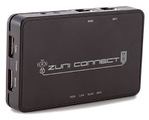
ZuniConnect Travel Router (Zuni Digital)
This tiny 802.11n router (3.86" x 2.37"x 0.65") allows you to hook to a wired connection and create a wireless access point or it allows you to hook to an existing wireless connection and create a wireless hotspot for other devices to connect to. The ZuniConnect includes two USB charging ports, too, and comes in a study case with a tiny Ethernet cable and the AC adapter. (Amazon $49.95)
iHome IB969G Charging Station (iHome)
I have lots of gadgets and also need more desk space. This charging station includes a single iOS sync/charge connection, an iOS charge-only connection, and two USB ports to charge two other devices. The front pulls open to hold an ereader or other small tablet. It is perfect for holding my iPhone, iPod Nano, Kindle, and iPad. (I still hook to a USB port on my computer for the iPad since I want to sync and charge. I use the second charging port for my Garmin GPS). One downside is that the weight of the iPad makes the station a bit tippy, but I you can just weigh down the front underneath and all should be fine! You may have to buy inserts for the iOS charging docks if the device you have needs a different one. (Amazon $44.24)
Nikon Coolpix S6100 Touchscreen Digital Camera (Nikon)
I admit it. I love Nikon cameras. I have a Nikon DSLR, the Nikon P7000 midsize, and now have the Nikon Coolpix S6100 as my point and shoot. I had been playing with this camera at the store for a while. I was first attracted by the 7X optical zoom (28-196) and also by the ease of use a touchscreen provides. It has vibration reduction, a motion sensor to allow you take moving photos with less blurring, and even has a Best Shot Selector which take ten shots and picks the sharpest image for you. There is a Smile Timer which does not take the photo until the subject smiles and an in-camera Red-Eye fix. But, the touchscreen is the best feature. No dials to turn or joysticks to wiggle and it takes no time at all to learn how to use it! Oh, and it takes good pictures, too! (Amazon $164.00)
Video Capture for Mac (Elgato)
I had some videotapes I wanted to transfer to my iMac and I mistakenly thought I could do video-in to my camcorder. I searched for various solutions, and came up with the Elgato Video capture for Mac. One end is a USB connection and the other end includes S-video, composite video, and two audio connections. I know that S-video and composite are not at the top of the heap of video quality, but ease-of-use trumped video quality for me. (And the quality was just fine, by the way!) The ability to put recorded videotapes into our one remaining VCR and hook up the Elgato to the video and audio-out jacks of the VCR and record directly into the computer was great! You can record in both MPEG-4 and H.264 formats. (Amazon $77.99)
That wraps it up for this edition of Kathy's Konsumer Korner! Let me know about new things you have found in the comments!
Visit Kathy's Web pages:
Kathy Schrock's Home Page
Kathy Schrock's Guide for Educators
Kathy Schrock
.
Blog
.
<span class='date ' tip=''><i class='icon-time'></i> Aug 05, 2015 06:17am</span>
|
|
I am creating a presentation dealing with online tools and utiities for my January webinar for the edWeb.community, PD in Action, and I am learning some new features of the tools that I have used for a long time! It is always a good thing to go back and re-visit the features of the tools because, over time, they all become better and better!
For example, I am typing this blog entry in ZohoWriter and I am going to post it directly to my blog from within ZohoWriter. It will be interesting to see how that works out. (Well, I could not do a direct post, but I was able to save it out of ZohoWriter as HTML and past the HTML into Blogger. I assume I could not do it since I have a custom Blogger URL.)
In addition, when doing research for the presentation dealing with strategies for the role of teacher as facilitator to support student learning, I bumped up against the "flipped classroom" model. I had been hearing about it for a couple of years, but never really had investigated how it works and the impact it has on student learning. (Where have I been?) What a great model!
I have to give it more thought, but I do not know if every teacher can totally "flip" their classroom. A blended model of some "flipped" days and some "non-flipped" might be a great topic for a PLC and for teacher or curriculum team goal-setting for a school year. Here is a overview of the model from the teachers who developed it, Aaron Sams and Jonathan Bergmann.
Wonder what other discoveries I will find today?
BTW, If you are interested in the upcoming webinar, just sign up for the "PD in Action" community and you will find the information about the next four months of presentations.
Visit Kathy's Web pages:
Kathy Schrock's Home Page
Kathy Schrock's Guide for Educators
Kathy Schrock
.
Blog
.
<span class='date ' tip=''><i class='icon-time'></i> Aug 05, 2015 06:17am</span>
|
|
I really love the AppleTV and AirPlay combo which allows me to mirror my iPhone 4s and iPad2. However, if I am going to move to the iPad as my presentation device, I would like to use it wirelessly, too. And, more importantly, the iPad's 30-pin connector port can be used to keep it charged, rather than being taken up by the VGA dongle.
After some discussions with Steve Dembo (@teach42), he told me he had used a device to do this already. I did my research, did some reading, and decided to try it out. The device I used is called the "LinkStyle HD Video Converter" and is available via Amazon.
A couple of notes:
A simple VGA to HDMI connector will not work for this purpose.
For hookup to a television monitor, you may need a pin-pin VGA cable. (The converter box has a port, as does my television.)
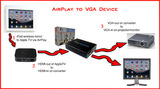
Since VGA does not carry audio, you will need a separate audio cable. The converter box has an 1/8" jack (headphone and computer speaker size) for audio out. You can plug speakers right into the converter or use adapters to get it to whatever your audio output device needs.
It was easier to create a graphic then explain the process, so you will see that below.
Click on image to enlarge
Addendum (5/2/12): This VGA to HDMI device, the Kanex ATVPro, apparently works with AppleTV with no power source....nice solution!
Visit Kathy's Web pages:
Kathy Schrock's Home Page
Kathy Schrock's Guide for Educators
Kathy Schrock
.
Blog
.
<span class='date ' tip=''><i class='icon-time'></i> Aug 05, 2015 06:16am</span>
|
|
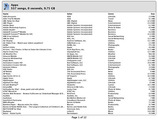
Tom Barrett tweeted a question today asking how to share your entire iPad app collection with someone. After a little research, I came up with a post on this page and followed the directions. Here is the first of the 12-page app list on my iPad.
First page of PDF printout of my iPad apps
Since the directions I found were posted back in 2010 (and I was using a Mac) I went through the steps again. Here are the edited directions for creating a list of the apps on your iOS device to share with others.
Open iTunes on your computer.
On the file menu, pick VIEW-AS LIST
You can pick a column to sort by for the final list, for instance name, genre, etc.
Select PRINT from the file menu and, in the print dialog box, select "Song Listing" and, in the in the theme drop-down box, select "Custom".
Click the "Page Setup" button and select landscape mode to avoid word wrapping and click OK.
Click PRINT in the print dialog box which will take you to your regular print menu where you can pick a printer or print/save to PDF to get a PDF file.
Screenshot of the choices in the dialog boxes
Thank you to Tom for posting the question. This is an easy way for us to share our list of apps!
Update 6/14/12: There is an application you can download which will scan your iTunes account, let you un-check any app you do not want to share, and give you a unique URL to share your list of apps with others. More here: http://www.applist.me/us.php
Visit Kathy's Web pages:
Kathy Schrock's Home Page
Kathy Schrock's Guide for Educators
Kathy Schrock
.
Blog
.
<span class='date ' tip=''><i class='icon-time'></i> Aug 05, 2015 06:16am</span>
|
|
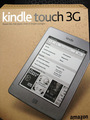
I finally was able to purchase the Kindle Touch 3G today. It was not even out for demo yet, but they pulled it out of a carton in the back of the store. I quickly tweeted about it, and, based on some of the responses I received, I realize that everyone has not been following this new device as closely as I have been!
Quick overview: This is the fourth generation Kindle and the first to have a touch screen. There have been Kindles with rocker arms, five-way controller buttons, and keyboards. I have had each version and really love the Kindle. My reasoning is simple. You can read outside in the bright sunlight and the battery life lasts forever.
The current Kindle line-up is a bit larger. As I explained to both the employees of the store I was in and potential purchasers, it does take a bit of thinking about before you decide what to buy.
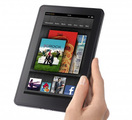
The Kindle Fire is Amazon's new Android-based tablet. It does not have full access to the Android marketplace, but it seems to be intended to be used with Amazon's books, music, and videos. It also has additional apps available. (If you are an Amazon Prime member, you get access to some free books and movies.) I already have an iPad and a Samsung Galaxy Tab 7", so, while the Fire is a great price ($199), I really did not need another tablet. And, since my goal was an e-ink device that is not backlit, easy on the eyes, can be used outside, weighs hardly anything (7.8 oz), and lasts forever on a charge, I never really had any intention of buying the Fire. However, if you do not own a tablet and want to step into the electronic book world and other media and apps as well, you should take a look at the Kindle Fire. Make sure to hold it in one hand for a while and read a bit in the store, to see if the 14.6 oz weight is okay for you.
If you are not interested in the Kindle Fire, there are some additional features you need to think about with the rest of the Kindle line-up.
Do you want WiFi or WiFi and 3G? (You also should realize that you can just hook the Kindle to your computer if you do not have WiFi available and load it up with books.)
Do you want "special offers" or no "special offers"? There is a price savings on the Kindles that contain special offers. The offers show up when the device goes to sleep, as screensavers, and at the bottom of the home screen.
Do you care about being able to have the book read aloud for titles that have that option enabled? Do you care about the ability to play music on the device while you read? Different models have different capabilities.
The entry-level Kindle sells for $79 with special offers and $99 without. It only comes in WiFi, does not read text aloud to you nor play music, and uses a five-way controller to highlight letters on an on-screen keyboard when you want to search for a book. It does have physical buttons along the edges to turn pages and additional buttons at the bottom for navigation. If you just want an e-reader this one is a good choice.
The Kindle Touch is WiFi only and sells for $99 with special offers and $139 without. This Kindle allows you to touch the screen to turn pages, flick up to scroll through chapters in books or view your lists of books, pinch to change the font size up or down, and type easily on an on-screen keyboard for all input boxes. The touch screen is very accurate from my brief experience so far.
The Kindle Touch 3G has both WiFi and 3G access, in addition to all the features on the Kindle Touch. It sells for $149 with special offers and $189 without.
Every Kindle owner who has Amazon Prime now also gets access to the "Kindle Owner's Lending Library" with access to download a free book each month. This option is not available on other devices (like tablets) that use the Kindle App to read books-- it is only for any Amazon Kindle owners.
I debated about which model to purchase. The Kindle also has an experimental Web browser that, before this version of the Kindle, allowed you to go anywhere on the Web. With the 3G model, you could tweet, check email, get directions and more, wherever you were. The experimental browser on the new generation Touch 3G now only goes to all Web sites over WiFi, so I had decided on the Kindle Touch with no special offers.
(Added later today: I found out that you can unsubscribe from special offers if you feel they are intrusive from your "Manage My Kindle" page on Amazon. You pay the difference that you saved-- in my case, it would be $40 if I decided I hated the ads.)
However, when I saw screenshots which showed how unobtrusive the offers were, I opted for the $149 Kindle Touch 3G with offers. This will allow me to download books where ever I am, and it was only $10 more than the Kindle Touch with no offers I had been considering. The experimental browser over 3G only goes Amazon and Wikipedia but goes everywhere over WFi. (One other point...with any Kindle version you get free WiFi access at any AT&T hotspot.)
In addition, in case you missed it, Overdrive (online e-book library) now offers books in Kindle format for any of the Kindles, back to version 1. Visit your local public library's Web site, enroll for Overdrive if they offer it, and search the library collection by Kindle format. Once you check-out the Kindle book for 7 or 14 days, it shows up in your book list on Amazon.com and can be sent to your Kindle.
My initial impressions of the Kindle Touch is that the screen responds well to direct touches, it is easy to turn pages since you do not have to swipe (although you can if you want), and it is much smaller than the previous Kindle Keyboard. I love it!
Did you get one of the new Kindles? What do you think?
(11/18/11) I looked at all the cases and settled on the M-Edge Latitude for the Kindle Touch. It is a zippered slip-case that is small, hard-sided, and holds the Touch in with four corner anchors. I read the Kindle with no case, but I feel better knowing it will not fall out of the case when I unzip the three sides! I picked it up at Staples, it is not yet on Amazon's site, and you can, of course, get it from the M-Edge site. It sells for $34.99.
Visit Kathy's Web pages:
Kathy Schrock's Home Page
Kathy Schrock's Guide for Educators
Kathy Schrock
.
Blog
.
<span class='date ' tip=''><i class='icon-time'></i> Aug 05, 2015 06:16am</span>
|
|
Well, I took some time and worked with a friend's Kindle Fire and was actually quite impressed. While I was presenting in New Hampshire, I went out and purchased one.
I am really impressed with the device. Is it an "iPad replacement" for me? Absolutely not. The iPad borders on being a laptop replacement with its larger screen and thousands of apps that can do most anything!
The Kindle Fire is an Amazon device that delivers their movies, music in the Amazon Cloud, and, of course, their eBooks, in a small tablet form factor.
The screen is responsive, the tablet is speedy, and it fits easily into one hand for holding. With this size (7.5" x 4.7" x .5") one can actually put it in a purse or deep jacket pocket for carrying around. The battery life seemed to last a long time, although I did not watch any videos in full yet...just tried out the Amazon Prime customer list of free flicks!
Since I am not a regular Android user, I fumbled around a bit with navigation to the non-Amazon and Web stuff, but am slowly learning. There are few buttons and icons to pick, so, once I got over that, I was fine!
I can search the Amazon App Store by title of app, but not all applications in the regular Android Marketplace are available for the Kindle Fire. The only one I really miss not having is the Sling Player Mobile app, but perhaps it will come. The interesting thing is, when searching, one sees the titles that are available in the Android Marketplace when typing the search term, but they are not listed as downloadable. It is quite a downer to see the app on the list, but then not be able to download it for the Kindle.
I still prefer reading my books on the e-ink Kindle Touch, and reading on the Fire is not unlike reading with the iPad and iPhone Kindle app. It's okay for short periods of time, or when you are in the dark, but the e-ink is much kinder on the eyes.
For someone who does not have a tablet, the Kindle Fire, at $199, is a nice device to get you started. Of course, at the big box tech store where I purchased it, I was answering all types of questions and concerns from shoppers-- it is just something I do this time of year when shoppers have that dazed and confused look on their face.
Here are some links to reviews of the Kindle Fire that go into more depth than I do:
http://www.anandtech.com/show/5128/amazon-kindle-fire-review
http://reviews.cnet.com/tablets/amazon-kindle-fire/4505-3126_7-35022491.html
http://www.techspot.com/review/470-amazon-kindle-fire/
Visit Kathy's Web pages:
Kathy Schrock's Home Page
Kathy Schrock's Guide for Educators
Kathy Schrock
.
Blog
.
<span class='date ' tip=''><i class='icon-time'></i> Aug 05, 2015 06:16am</span>
|
|
Since the Kindle Fire is an Android device, there is a way to install the OverDrive Media Console to download ePub books from your local library. Of course, there are now Kindle downloads available in OverDrive, and you would pick those first. But sometimes the title is only available in ePub format or the Kindle copy is out.
Here is how you do it.
Overdrive site
On the Fire, you will need to do two things first.
Go to Settings, More, Device, and turn on "Allow installation of Applications from Unknown Sources". (You can turn this off when you are done with this install.)
Go to the Amazon Android store and download AndroXplorer, which allows you to browse the file structure on your Kindle Fire.
Using the Android Web browser, go to http://overdrive.com/Software/omc
Click on the Android option to download, and look right below the box for the link that states "If your device does not support Android Market, you can download OverDrive Media Console for Android from OverDrive." (Screenshot on left.) Click on that link.
Accept the licensing terms and you will see a short pop-up stating "downloading application". You will not be able to see the application in your Kindle Fire App menu yet.
Open the AndroXplorer application you downloaded on the Kindle Fire and navigate to the sdcard directory and then the Download directory. You will see "ODMediaConsoleSetup.apk" in the Download directory. Click on it and it will install the OverDrive Media Console on your Kindle Fire. (You can delete this downloaded file later once everything works.)
Add your library to the OverDrive app, and you can visit your public library's OverDrive site and download Adobe ePub books. If you do not have an Adobe account, you will be prompted to create one within the OverDrive app when necessary. OverDrive shows up in your App menu, now, too!
Visit Kathy's Web pages:
Kathy Schrock's Home Page
Kathy Schrock's Guide for Educators
Kathy Schrock
.
Blog
.
<span class='date ' tip=''><i class='icon-time'></i> Aug 05, 2015 06:16am</span>
|
|
I had an electronic pen many years ago, even before tablet PCs were out, and it worked pretty well, but technology sure has improved this type of gadget!
I just purchased a Livescribe Echo 8 GB Smartpen Educational Bundle.
The bundle includes
The smartpen, 2 ink cartridges, 2 pen caps, and the USB cable
A small starter notebook
Livescribe Connect and Desktop software
One license for a Livescribe Self-Paced Training Course
The K-12 Idea Book
A non-inking stylus
The My Script Software for handwriting-text conversion
Livescribe Echo Smartpen
This smartpen can do so much, I do not know where to start! It has both a camera on the tip (which records your writing) and a mic on the side (which records your audio) and the ability to attach a mic/headphone to the top to make your audio recordings cleaner.
You control the collection of data by the pen by using special paper (which you can print out on your own printer, too) and by using special control areas on each page of the notebook to start the recording, set a bookmark as you go along, and playback, in addition to some other functions.
Controls on special paper
You hook the smartpen up to your computer with a USB connector when you are ready to move the files off the pen. You can then send the recordings to various places including your computer, your own Livescribe site, Evernote, Facebook, and, with certain models, Google Docs and Google Sites.
If you save the recording to your computer, the pencast, as the recording is called, gets wrapped in a PDF file that anyone with Adobe Acrobat can watch and listen to.
If you save the recording to your Livescribe site, you can make it public, send others a URL, and even embed it your blog or Website, like mine below. (Click on any text that is not yet green and you can see that the audio attached to that spot in the recording is played.)
A5 Starter Notebook p. 2
brought to you by Livescribe
The pen does much more, too!
Once you create the file and move it to your Livescribe Desktop software, you can click on any word in the file and hear the audio.
As with the Windows TabletPC OS, you can conduct a search on any word across all of the handwritten notes.
There are over 125 (mostly paid) applications you can install on the pen that do any number of things. The pen has a small OLED area, which is utilized by the pen software and installed software.
You can record just audio with the pen, without any special paper, if you wish.
With the My Script software (included in this bundle but not in the regular package you find at your local retailer) you can turn the handwritten text into typed text by OCR'ing your notes.
Livescribe supports K-12 use of the smarten with a site that includes ideas, as well as incentive programs for educators including the Livescribe Ambassador program.
If you are an educator and are interested in purchasing the educational bundle, please contact Debbie Yasenka of Engaged Learning Solutions at 404-731-3504 or via email at dyasenka@engagedlearningsolutions.com for information and pricing.
Visit Kathy's Web pages:
Kathy Schrock's Home Page
Kathy Schrock's Guide for Educators
Kathy Schrock
.
Blog
.
<span class='date ' tip=''><i class='icon-time'></i> Aug 05, 2015 06:15am</span>
|
|
Okay, I admit it. I love technology bags and holders of every type. I have roller bags, Vera Bradley laptop-holding bags and backpacks, neoprene cases for the Macbook Airs and iPad, and many, many more bags. I mean, it's like shoes...you have to have ones for the right purpose, right?
In any case, I thought I might share some of my newest bags, sleeves, cases, and holders with you, in case you are thinking about what works and what does not!
Tech Bags and Sleeves
The 11.6" Macbook Air is a hard item to find a special bag for. Here are some of my favorites.
Roocase 11'6" netbook case
Roocase has a bag in their netbook category that is for 11.6" items. It fits the small MBA well and you can even fit the iPad and cables in the bag, too. It comes in various colors, is sturdy, and has rubberized "feet" on the bottom to keep it clean when setting it down. The laptop compartment is padded and has a Velcro closure. (I also have the larger version for the 13.3" Macbook Air.)
Be.ez LA Robe Allure
My favorite sleeves for my iPad and the 11.6" Macbook Air are made by Be.ez and are hard-sided and sturdy. The model is the LA robe Allure sleeve for iPad and 11.6" MBA. The LA robe Allure is also available for the 13.3" MBA and 13.3" and 15.4" Macbook Pros.
Tocano Finatex Extra Small
When I am really traveling light, and just want my iPad, my 11.6" Macbook Air, and my iPhone, I take a bag that I found in an airport technology shop-- my Tocano Finatex Extra Small. It holds all three items without any cases on them.
Sherpani Flite FL
The rolling bag I take with me most of the time is the Sherpani Flite FL. It is very well-made, has rolled handles to hold as well as a shoulder strap in case you do not want to use the extendable handle, and has a sturdy strap on the back for attaching to other luggage handles. It does not have an attached laptop sleeve area inside, but has a nice elastic strap for holding your laptop in place in its own sleeve. It is well-sized at 16.5" x 13.5" x 6". You often find it for sale on Overstock.
Tech Cases and Holders
I have all different types of cases for my iPad2. Again, it depends on how I am planning to use it as to which one I take with me!
One that I use around town is the YakPak Portfolio Case. (I picked mine up at Bed, Bath, and Beyond.) It is a nicely lined case with places for business cards, a small tuck-in area, and can hold the iPad with the Magic Cover on the front or back behind elastic corner straps. It is minimalist, but protects the device well.
IPEVO Typi Folio Case
When I need to have a keyboard with me, I use the IPEVO Typi Folio Case and Wireless Keyboard. What is nice about this well-made leather case, is that the keyboard is easily detached and used on the table. This comes in handy when you are working with someone since they can then see the iPad's screen easily or can share in the typing tasks! The Bluetooth keyboard has a nice touch and lasts through about 12 hours of typing.
IPEVO Typi Wireless Keyboard
The case itself is not bulky, and you can access all the ports on the iPad while the case is on and there is even an opening in the back of the case for the camera lens.
It is available on Amazon or from IPEVO.
When I am presenting with the iPad, I have three different iPad holders I can use.
Higher Ground Podium iPad 2
The Higher Ground Podium iPad 2, which is a sturdy, reinforced nylon case like all of Higher Ground's products, also includes an innovative strap/Velcro method of adjusting the viewing angle of the iPad2 to your liking. This really helps when presenting on the podium, too. The iPad is held in by the built-in silicone case.
Higher Ground Podium iPad 2
However, the coolest thing about the Podium iPad 2 is the built-in elastic hand holder on the back. (Not just a simple strap!) You can see from the photo that you slip your hand through the elastic and grip the edge of the case. It makes you feel safe carrying your iPad around the classroom, workshop, or conference area since you have a really good grip on it!
IPEVO Perch
The next item I use when presenting is the IPEVO Perch Desktop Stand. This iPad stand easily rotates from landscape to portrait mode and is a perfect "perch" for the presenter podium when using the iPad to present my talks. The Perch has a weighted base that comes in three lengths-- the small height I use at the podium, a taller one for using while sitting in a chair, and the tallest one that is its own podium! The Perch is available through Amazon or IPEVO.
Merkury Innovations Swing Stand
And, finally, the last iPad stand I use lives in my tech stuff carry bag. It is the Merkury Innovations Swing Stand. It is lightweight, foldable, allows the iPad to be either in landscape and portrait mode, and is easy to use on the tray table in the airplane! It also works with any tablet or eReader, too.
Addendum 1/19/2012: I have been wanting one of the Pan Am retro bags and finally found the Pan Am Secret Agent laptop bag at a "reasonable" price (and with a coupon) on Punk.com. They have just come out with a new version of this bag, which costs about 30% more, and I like the original one better, so I finally made the purchase. Can't wait to use it!
What is your favorite tech bag, sleeve, case, or holder? Please share in the comments and include a URL so I can look at it! Thanks!
Visit Kathy's Web pages:
Kathy Schrock's Home Page
Kathy Schrock's Guide for Educators
Kathy Schrock
.
Blog
.
<span class='date ' tip=''><i class='icon-time'></i> Aug 05, 2015 06:15am</span>
|
|
Derek Gillette of BoxWave recently contacted me and asked me to review a few items that I thought might be useful for schools. I went through their online catalog and picked out the items below. Please let him know if you are interested in purchasing any of these items yourself or need a quote or volume pricing for your school or district!
BoxWave In-Ear miniBuds
The first thing I looked at was the BoxWave In-Ear miniBuds. BoxWave has always been in the forefront of the retractable cable devices and I have used many different types of cables from them over the years. This set of in-ear, stereo headphones are retractable and come with three different size ear tips and a clip you can attach to the cable reel to hook it to your collar or jacket if you wish.
BoxWave In-Ear miniBuds
With the one-to-one initiatives and laptop and tablet carts in schools, I notice many students using their own headphones in class. However, I also notice the amount of time it takes students to unwrap the tangled cables that are wrapped around the stuff in their backpacks or purses! The retractable cable on this headset solves that problem and saves precious class time.
The BoxWave In-Ear miniBud headphones are very comfortable, the sound quality is great, and very little sound would "leak out" to surrounding students with the in-ear design.
Tri-Connect Mini DisplayPort Adapter
Tri-Connect Mini Display Port Adapter
The second item I asked to review was the Tri-Connect Mini DisplayPort Adapter. This under-$12 device provides three different connection types to your Macbook, Macbook Pro, or Macbook Air with the Mini DisplayPort. It includes the laptop to DVI connection, the one encountered on many external monitors and LCD projectors; the laptop to DisplayPort connection, the full-size version of the Mini DisplayPort on the Macs which is slated to become the the future VGA and DVI replacement; and the laptop to HDMI connection, to hook up the laptop to flat-panel TV's and many new LCD projectors.
For classroom use, you probably already have a laptop to VGA adapter for use with an LCD projector or flat panel TV or monitor. However, VGA is an analog connection, and use of a DVI or HDMI connection is so much clearer for the viewer! As schools get new devices in the classroom, they should consider accessories such as this Tri-Connect Mini DisplayPort Adapter to make sure teachers have the connection they need in their classroom, in the conference room, and in the auditorium for projecting their Mac laptop.
Manila Leather Envelope
Manila Leather Envelope
The third thing I asked to review was the Manila Leather Envelope for my 11.6" Macbook Air. (For those of you that follow my blog, you know I am a bag and case "connoisseur"...okay, junkie!)
Ever since these Manila Leather Envelopes first came out, I really wanted to see one in person and I was not disappointed! It is pretty much the coolest case on the market, IMHO. I was surprised at the quality of the leather and the soft inside lining. The Manila Leather Envelope also has reinforced corners which protect the laptop even more.
These Manila Leather Envelopes are available for tons of devices-- the Macbook Airs, the iPads, the iPhone 4 and 4S, Amazon's Kindles and Kindle Fires, many brands of smartphones, all the e-readers, and Android tablets like the Motorola Xoom and Samsung Galaxy Tab. (You can find links to all the cases starting on this page.)
Are these the definitive case for school-owned or one-to-one initiatives? Well, they look like a school supply, protect the devices with a form-fitting case, and are just so "cool for school"!
Thanks to Derek Gillette of BoxWave for allowing me to have a day of fun putting the BoxWave products through their paces and coming up with ways they would be useful for the classroom, students, and teachers! Don't forget to contact him for pricing or a quote if you need one!
Visit Kathy's Web pages:
Kathy Schrock's Home Page
Kathy Schrock's Guide for Educators
Kathy Schrock
.
Blog
.
<span class='date ' tip=''><i class='icon-time'></i> Aug 05, 2015 06:15am</span>
|