Blogs
|
When Keynote for the iPad was released, I was really excited about the possibility of leaving the laptop at home and using the iPad for presentations. With Keynote's ability to project the slide via the iPad's 30-pin to VGA connector, I thought I was all set.
I was disappointed to find out the Keynote app just mirrored the presentation, and did not allow for the presenter's notes to be seen on the iPad while the viewers just viewed the slides. I always use the presenter's mode in PowerPoint and Keynote, and find it very handy to have my notes available to me.
I came across an iPad app called 2Screens- Presentation Expert a few weeks ago, and suggested to the developer, Edwin Lam, that perhaps he could come up with a way to allow the presenter's notes to be seen on the iPad. Edwin told me he was already figuring out a way for that to happen, and a new version was released on September 23rd with this capability! Yippee!
Here is how it works, as outlined in the directions in the FAQ section of the Web site.
Open your Keynote or PowerPoint file with the Keynote app on Mac.
Select File > Export > PDF and choose "Export Slides With Notes".
Check "Print each stage of builds" and UNCHECK all other options (please make sure NOT to check the options for "Include slide numbers" and "Include date").
Click "Next" to enter file name and select the destination folder for the output PDF.
Transfer the output PDF to 2Screens' local folder on iPad through iTunes file sharing function.
Open 2Screens app on iPad and make sure "Fast PDF Mode" is turned ON in the "Tools" menu.
Select the PDF from the Folder menu.
After the PDF is loaded, click on the "PN" button on the bottom bar menu to show/hide the semi-transparent yellow area where the presenter notes are shown.
It may sound like a lot of steps, but it is really very easy, quick, and, as you can see from the images below, works like a charm!
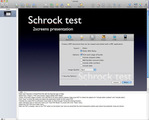
Original Keynote presentation with presenter notes
Screen shot from the iPad of the exported PDF of the Keynote with the presenter notes popped up (they scroll)
Photo of the iPad attached to the VGA connection of the TV. Slide on external device, slide and notes on iPad!
Kudos to Edwin for working this out! If you are a Windows user, find a friend with a Mac and Keynote to import and then export your PowerPoint presentation for use on the iPad!
Information page with the manual and an FAQ page for 2Screens.
Link to the iTunes store and the app here.
Visit Kathy's Web pages:
Kathy Schrock's Home Page
Kathy Schrock's Guide for Educators
Kathy Schrock
.
Blog
.
<span class='date ' tip=''><i class='icon-time'></i> Aug 05, 2015 06:22am</span>
|
|
I am starting to appreciate IPEVO's innovations more and more! Even though they are a consumer-oriented company, many of their items are useful for schools and support of teaching and learning. Of course, the IPEVO Point 2 View document camera has been a big hit in my district and everywhere else I demo it.
I got the chance to take a look at three new gadgets from IPEVO. The first is the Icon Power Pack for iPhone and iPod, an external battery charger for these devices. I have used the Kensington Mini Battery Pack for a number of years, and have always been happy with it. I cannot tell you how many times an external battery has helped me out, especially with the earlier iPhones with the shorter battery life.
The Icon works in the same way. You charge it via a USB port on your computer, then, when you plug it into the 30-port connector on the iPhone or iPod, the handheld recharges itself from the Icon. The blinking lights on the Icon let you know how much battery life is left for charging.
The Icon is rated to give 3 hours of additional talk time, or 5.5 hours of Internet use, or 18 hours of additional audio playback for the iPhone 3/3gs or iPhone 4. I can definitely see having a few of these on-hand in classrooms that are piloting 1-to-1 iPod or iPod Touch initiatives, especially when going out in the "field".
The second gadget I tried out was the Open Stereo Headphones. These headphones are the over-the ear type, sit outside of the ear canal and are quite comfortable. They have an in-line remote and mic for use with iPods and iPhones. However, the coolest feature is they allow you be aware of external sounds even while listening to music with the headphones on!
I tested it out today in a 7th grade computer class, where students were working on projects, and discussing content and navigation and set-up aloud the entire time. I could easily listen to music at a fairly high volume, and still hear what they were saying as well as the teacher giving instructions. I let a few of the students try them out, too, and they were impressed. If a computer lab had a classroom set of these, there would be no more hand signals or flicking off of classroom lights to get the student's attention. In addition, students would no longer have to raise their voices (as 7th graders are wont to do) when both wearing headphones and talking loud when trying to get the attention of another student.
When I showed them to the computer teacher, her only concern was examining them to see how rugged they were, since they would have to put up with five classes of middle schoolers each day. I am not sure of that, but I do know there are not many larger, more expensive headphones that have been able to withstand the middleschooler, either!
The third new gadget I tried out was the one I had the most fun with -- the IPEVO Tubular Wireless Speakers.
These portable speakers come connected together in an easy-to-transport tube. To use them, they twist apart to reveal a USB connection for charging with the computer in the base of one and an audio cable to connect the speakers together in the base of the other.
These speakers attach to the iPod, the iPod Touch, and the iPhone via a Bluetooth pairing connection, and they should work with any laptop or device that has Bluetooth capabilities.
I easily paired them with my iPad, and then carried the speakers throughout my house, streaming the music wherever I went! In a classroom setting, these would be very useful for sharing audiobooks and podcasts in small groups of students, or even with the entire class.
(One tip: I found that I needed to make sure the two speakers were attached to one another via the audio cable BEFORE doing the pairing with the iPad in order to get sound from both speakers.)
Can't wait to see what IPEVO comes up with next!
Visit Kathy's Web pages:
Kathy Schrock's Home Page
Kathy Schrock's Guide for Educators
Kathy Schrock
.
Blog
.
<span class='date ' tip=''><i class='icon-time'></i> Aug 05, 2015 06:22am</span>
|
|
Okay, audio-conferencing and attending Webinars just got a lot easier for me when I have a group of staff members watching and listening with me.
The problem always was lack of a speakerphone. I managed to solve the problem by purchasing Skype-out credits so I could dial-in to the landline we needed to connect to via the computer, so we could hear and participate in various online webinars. If the hosts used VOIP, we were all set for audio, but still each had to come up to use the microphone on the computer to ask a question. And, for simple conference calls, it got a little bit crowded as everyone huddled around the speakerphone in my office.
IPEVO X1-N6 Internet Conference Station
Well, I can now go mobile with the IPEVO X1-N6 Internet Conference Station ($139)! This device is both a USB speaker and a USB microphone. I will simply have to bring the laptop to a conference room, plug in the IPEVO Internet Conference Station to a USB port, log-on to the webinar, choose the device as both the audio input and output devices, and everyone in the room will be able to clearly hear the webinar over the speaker in the Internet Conference Station, as well as easily contribute to the collaborative conversations that might occur. The device also has a mute button to mute the local sound when just listening to the online presentation.
However, the Internet Conference Station can be used ANY time one wants to get a group together to discuss something. For example, students creating an audio file as the backdrop for a slide show or movie can just plug in the device and each can easily add their thoughts. I also see the device being used by a student podcaster who is interviewing a small group of students, staff, or community members. The Internet Conference Station can be chosen as the audio input for apps such as Jing, GarageBand, Audacity, Adobe Connect, Microsoft PowerPoint, and any other app that allows the choice of the audio input device.
If you have any ideas on how the IPEVO Internet Conference Station might be used in an educational setting, add a comment! Thanks!
Visit Kathy's Web pages:
Kathy Schrock's Home Page
Kathy Schrock's Guide for Educators
Kathy Schrock
.
Blog
.
<span class='date ' tip=''><i class='icon-time'></i> Aug 05, 2015 06:22am</span>
|
|
I have been using the Kindle 3 for a couple of months, and also using the iPad to read my Kindle selections, and I wanted to offer a few additional thoughts.
I still enjoy reading my books on the Kindle because of the electronic ink and the lack of backlighting, which makes it much easier on the eyes for long periods of time.
The added weight of the Kindle when in the case with the built-in light has not been noticeable. Folding back the cover when reading works well, so I have not taken it out of the case to read at all.
I do like having the 3G version for both purchasing and previewing new titles, and for using the Web browser anywhere I am. Of course, the iPad wins, hands down, for Web browsing, but the Kindle works in a pinch to check e-mail, tweet, or get ready-reference information. (I am one of those people who feels the need to have access to the Net and information with me 24x7, so I always can make do with the tool I have on hand!)
I have a more complete review of the Kindle 3 here, if you are interested.
Below you will find links to the two versions of the Kindle 3, the WIFi-only and WiFi/3G version and also links to all the apps for reading Kindle books on other devices. One of the main reasons I prefer the Kindle device is the number of titles available in the Kindle bookstore.
Visit Kathy's Web pages:
Kathy Schrock's Home Page
Kathy Schrock's Guide for Educators
Kathy Schrock
.
Blog
.
<span class='date ' tip=''><i class='icon-time'></i> Aug 05, 2015 06:22am</span>
|
|
I had the first Macbook Air a few years ago for about a minute and a half. It was so slow and underpowered and it had that weird door that dropped down to plug things into that nothing could plug-in to! I sold it after a very short time.
I wavered on the purchase of the new Macbook Air for almost 24 hours, and, for those of you that know me, you will realize this is odd. I had done all the research ahead of time, drove to an Apple store to see one (but they had not received one yet), and talked to some very smart colleagues who talked me out of it.
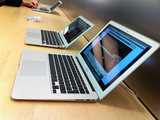
Photo by http://www.flickr.com/photos/rsepulveda/5104919191/
I then polled my Twitter followers, but no one had yet touched one, let alone purchased one. However, I looked carefully at both the specs and the hype, and decided to get the 11.6" version, doubled the RAM to 4GB, doubled the SSD to 128GB and upgraded the processor to the 1.6 GHz. I did not want to get caught with an underpowered machine again, but the total price was a little daunting!
I cannot believe this little machine! It is powerful enough to do Second Life (my avatar is iffy, but everything else renders perfectly!), it can video edit using Adobe Premiere Elements 9 for the Mac, and opens all apps so speedily, it takes your breath away!
I restored a Time Machine backup of my Macbook Pro and the new MBA was all ready to go! With the smaller amount of internal storage, I did uninstall most of the Adobe CS apps, but kept the ones I am most likely to use away from home like Dreamweaver and Acrobat Pro.
After the install of all my applications, I have about 60GB of data storage left, and that is fine for my purposes. With so much of my data available "in the cloud" and on my home computer via "Back to My Mac", I am all set by having everything available to me all of the time!
I miss a couple of things so far. Not the optical drive, but the back-lit keyboard and SD card slot. The larger model has the SD card slot, and I know that the battery life is longer without the back-lit keyboard, but I still wish it had it.
I have to remember to carry both the VGA dongle and the Ethernet dongle with me now, but that is not a problem. I have hooked the computer up to a older projector and the "non-standard" resolution works just fine.
Please feel free to ask any questions in the comments of things you want me to try out or concerns of yours I might have missed!
Visit Kathy's Web pages:
Kathy Schrock's Home Page
Kathy Schrock's Guide for Educators
Kathy Schrock
.
Blog
.
<span class='date ' tip=''><i class='icon-time'></i> Aug 05, 2015 06:22am</span>
|
|
I have been to Europe and Australia in the past. However, I have not had the time to really get out and about and become familiar with the culture of the places I have visited. I arrived two days early to the ECIS (European Council of International Schools) Conference in Nice, France. I had a little time to explore, and I learned some things here in France.
I know many of my respected colleagues in my PLN teach in other parts of the world, in both international schools and DoDEA schools, and I will be meeting many more this week at this conference. I live in a rather sheltered spot, Cape Cod, MA, and this week has made me realize that we must have our students become comfortable with dealing with people from other parts of the world. This is nothing earth-shattering to most of you, but it really became apparent to me this week. Can we successfully do this virtually? Probably not to the extent we need to acclimate our students, but technology can play a big role in at least starting the process of global and cultural understanding.
Here is what I learned this week.
It is lonely if you do not know the language of the country you visit. I could not engage in any small talk with anyone. That was hard for me. After being immersed in the French language for two days, and reading it everywhere, I can now understand signs, menus, and basic items. I do not even begin to say anything but thank-you, please, hello, and good-bye. Oh, and "I cannot speak French." Note to self-- always help non-speaking visitors in the US whenever possible.
Everyone in Nice has been more than helpful. I tried to pay the graciousness forward by taking lots of family photo shots for other tourists, from wherever they came.
I realize I can follow a map written in another language without knowing that language. However, I miss having GPS and interactive maps on the phone since I have no phone plan here. I had to download PDF maps to get around. Using the cell phone camera, however, helped me to leave a trail of bread crumbs so I could get back to transportation hubs and such.
People on subways act the same everywhere, even with no conversation involved. I was proud I figured out how to use public transport, even if someone had to show me how to purchase the tram ticket. No conversation necessary, just a lot of gesticulation!
One needs to notice when one is walking in the bicycle-only lane on the Promenade Des Anglais along the beach in Nice. Enough said.
One has to wear black here. Everyone does. And since Nice is a summer resort, everyone bundles up with scarves and mittens when it hits 50 degrees. I am thinking the weather is spring-like, as the New England cold weather has already begun to show up at home.
Everyone has a scooter-type motorcycle like mine! However, ATVs are street-legal and I even saw a regular motorcycle with two front wheels! (I want one of those.)
Now, after two days, I am feeling more comfortable, but certainly not totally. If our students have the chance to communicate, both synchronously and asynchronously with others, I think we should all make that happen. There should be no worries about streaming chat software, screen-sharing, and the like. Just make it happen to allow students from whatever country gain a better understanding of both what is the same and different about each other. Au revoir!
Here is a slide show of my photos for the past two days. (The Flickr set contains the object in the photo in the title of the slide.)
.
Visit Kathy's Web pages:
Kathy Schrock's Home Page
Kathy Schrock's Guide for Educators
Kathy Schrock
.
Blog
.
<span class='date ' tip=''><i class='icon-time'></i> Aug 05, 2015 06:21am</span>
|
|
Since much of my "best" work is now done in 140 characters (or less) on Twitter, I figured I would try an embed of my last 100 posts to my Twitter feed as my year-end post. For those of you that do not tweet, this will give you a good idea of the items that I share on Twitter. Of course, this list will continue to change as I add new tweets. Maybe you will be convinced to try Twitter or add my Twitter feed to your Google newsreader! (You can see more here if you are interested!)
Visit Kathy's Web pages:
Kathy Schrock's Home Page
Kathy Schrock's Guide for Educators
Kathy Schrock
.
Blog
.
<span class='date ' tip=''><i class='icon-time'></i> Aug 05, 2015 06:20am</span>
|
|
Well, the last photo is posted and it is bittersweet. No more going out at 6am to get just the right light on that very special door. No more going out at 6am in order to stand in the middle of the road to get just that right angle for that perfect door photograph. No more surreptitious photos of doors out the window of the car while driving by a house. No more trying to act casual as I photograph a series of doors in the same neighborhood as I stroll down the street (and not appear as a stalker). No more making every family member turn around or park by the side of the road as I jump out to take that very special door photo. No more 30 mile drives to get that great door since I did not have my camera handy when I saw it the first time. No more editing of house numbers off of the photos so I do not put anyone's home at risk.
I will miss all these things, and will continue to see doors everywhere I go for a long time to come. This project, which required me to take a photo a day for a year, was a really fun project! I did not really take a door photo each day, since I found some streets with stretches of really nice doors and used them for an entire week. However, I did take door photos wherever I was, and even lamented when there was a storm door over a really awesome door. (The reflection off of storm doors is awful for photos, so I only took a very few of those.)
I received a small number of "guest" doors (and the guest door idea came from Roberta Sallee, BTW) from some of my buddies and relatives, Bodie Fulford, Bob Cotter, my mother-in-law, my dad, my mom, Melanie Holtsman, and one other (who I forget). I appreciate them taking the time to gather some photographs to enhance my project.
During the year, the gallery of doors was hosted on my Mobile.me Gallery. This allowed RSS aggregation and an automatic Twitter feed each day to my stream to alert people to the new photo. The funniest comment of the year came when I posted the "Adobe Door". One follower wrote and told me he was expecting a door on an adobe building, somewhere out west. In reality, it was the door at the Adobe Software Headquarters in San Jose while I was there for the summer institute.
I have moved all of the photos to Flickr, and here is the link http://linkyy.com/schrockproject365 to the set.
Below is the embedded slide show from Flickr. Thanks for all the kind words and comments throughout the year!
Visit Kathy's Web pages:
Kathy Schrock's Home Page
Kathy Schrock's Guide for Educators
Kathy Schrock
.
Blog
.
<span class='date ' tip=''><i class='icon-time'></i> Aug 05, 2015 06:19am</span>
|
|
I have not posted to the blog for almost a month! I apologize for that, but I have been busy getting presentations and grad courses ready for various upcoming events!
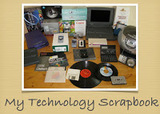
One that took me a long time was the "history of technology" presentation I am doing at NCTIES in Raleigh in early March. I had put together a 20-minute movie on the topic a few years ago for our MassCUE anniversary celebration, but I did not do any talking. I had to figure out how I was going to adapt the content I had already collected and gather the four additional years of technology coolness and present it for a break-out session. I did manage to do it, and the resulting presentation was as much fun to put together as I hope it will be for my audience to watch! I created a "technology scrapbook" of my personal tech acquisitions over the years, and included personal photos and all kinds of other fun things! (However, I probably cannot share the presentation outside of a conference space, because, as you can well imagine, I did not get permissions for all the gadget photos I have included in the show!)
I also have been busy learning some new software interfaces, most notably the new version of Adobe Connect 8 and the new Adobe Acrobat X. The components of both have been improved and the navigation has been made easier, but it still takes a while to adapt to new interfaces. Adobe Acrobat X has some exciting new accessibility features, too! I have also been using the new Apple iLife suite, mostly iMovie, and am taking advantage of some of the new features.
I have perfected my "Using Infographics as a Creative Assessment" presentation for ISTE11 in Philadelphia. I am sold on this alternative assessment practice, and, if you attend the session, will help you see how great it is, too!
That's it from kinda snowy, but very cold, Cape Cod! I am looking forward to attending FETC in Orlando next week and will be helping in the DEN pre-conference and doing two featured sessions. I hope the weather is at least sunny for me!
Visit Kathy's Web pages:
Kathy Schrock's Home Page
Kathy Schrock's Guide for Educators
Kathy Schrock
.
Blog
.
<span class='date ' tip=''><i class='icon-time'></i> Aug 05, 2015 06:19am</span>
|
|
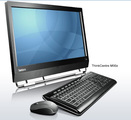
Lenovo's ThinkCentre M90z
I have recently received a permanent evaluation unit of the Lenovo ThinkCentre M90z to both put through its paces and to consider ways it can be used in the K-12 arena. I am part of a second round of evaluators, all of whom have a different career, who get to use this new machine and blog about it.
The ThinkCentre M90z is a very cool machine! The first thing that I tried out was its touchscreen, which Lenovo calls the "multitouch panel". Of course, it comes with the requisite keyboard and mouse, but you can pan and zoom and rotate and right-click just using your fingers on the screen! The intuitive nature of controlling by touching is a feature we all have become accustomed to with our small tablets, but having that ability on this desktop's big screen is awesome! The ThinkCenter M90z also comes with bundled software that allows you to control some of the hardware functions via touch.
Now some geek speak...the ThinkCentre M90z is a one piece, all-in-one desktop with a 23" widescreen with full 1080p HD resolution. It has an Intel Core i5 processor and 4 gigabytes of RAM and runs Windows 7 beautifully! The M90z has a Web cam and mic, and also has some additional unique features. It has a DisplayPort connector, like some laptops do, to allow you to hook it up to another monitor or an LCD projector for whole-class viewing of the info on the ThinkCentre M90z computer with an optional cable. However, the computer also comes with a VGA-in port, which means you can hook up your laptop or iPad to the desktop and use the ThinkCentre M90z as a large-screen monitor, too!
iPad projecting through the VGA-in port on the M90z
The model I received has six USB ports, so, with the purchase of an external USB 802.11x wireless adapter, you can put this one-piece unit anywhere you can find a single electric outlet! Of course, it has an Ethernet port, too, but it is nice to think you could place this computer in a public place for access by students or staff!
If you want to read more about the specs and watch it in action, take a look at this page. And the link to the user manual can be found here.
There will be the announcement of a promotion soon, as there was in December for the first round of evaluators. I am not yet sure what the "prize" might be for the promotion I am going to sponsor, but, suffice it to say, if you take the time to read about the Lenovo ThinkCentre M90z and think of creative ways it can be used in the K-12 classroom or school, you will be ready for any promotion I launch!
Visit Kathy's Web pages:
Kathy Schrock's Home Page
Kathy Schrock's Guide for Educators
Kathy Schrock
.
Blog
.
<span class='date ' tip=''><i class='icon-time'></i> Aug 05, 2015 06:19am</span>
|